> ## Documentation Index
> Fetch the complete documentation index at: https://docs.oryxai.io/llms.txt
> Use this file to discover all available pages before exploring further.
# Claude
> Configure Oryx to use Anthropic's Claude AI assistant
Claude Sonnet 3.7 and 4.0 are excellent for agent tasks. Great for complex reasoning and following instructions precisely.
## Get your API key
### Step 1: Go to Claude Console
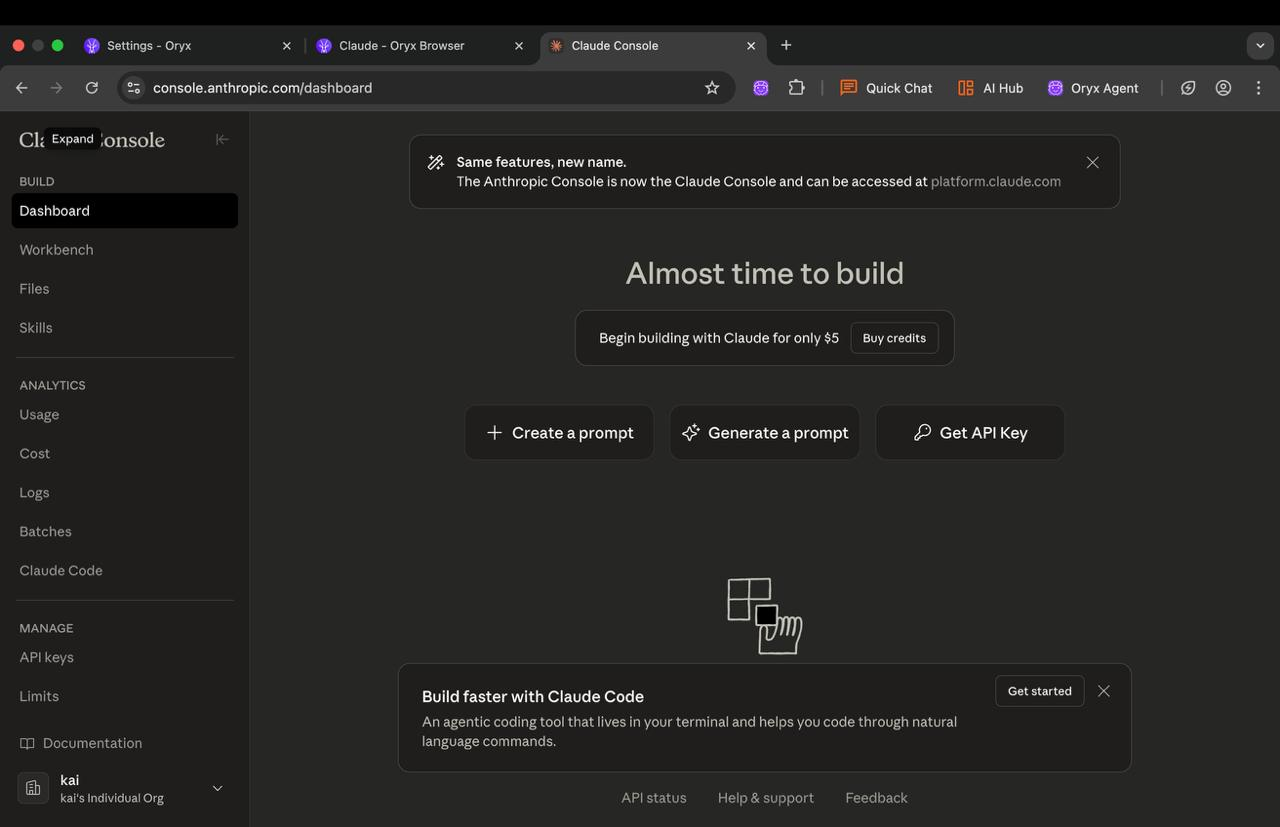
Visit [console.anthropic.com](https://console.anthropic.com/dashboard) and click **API keys** in the left sidebar.
 ### Step 2: Create a key
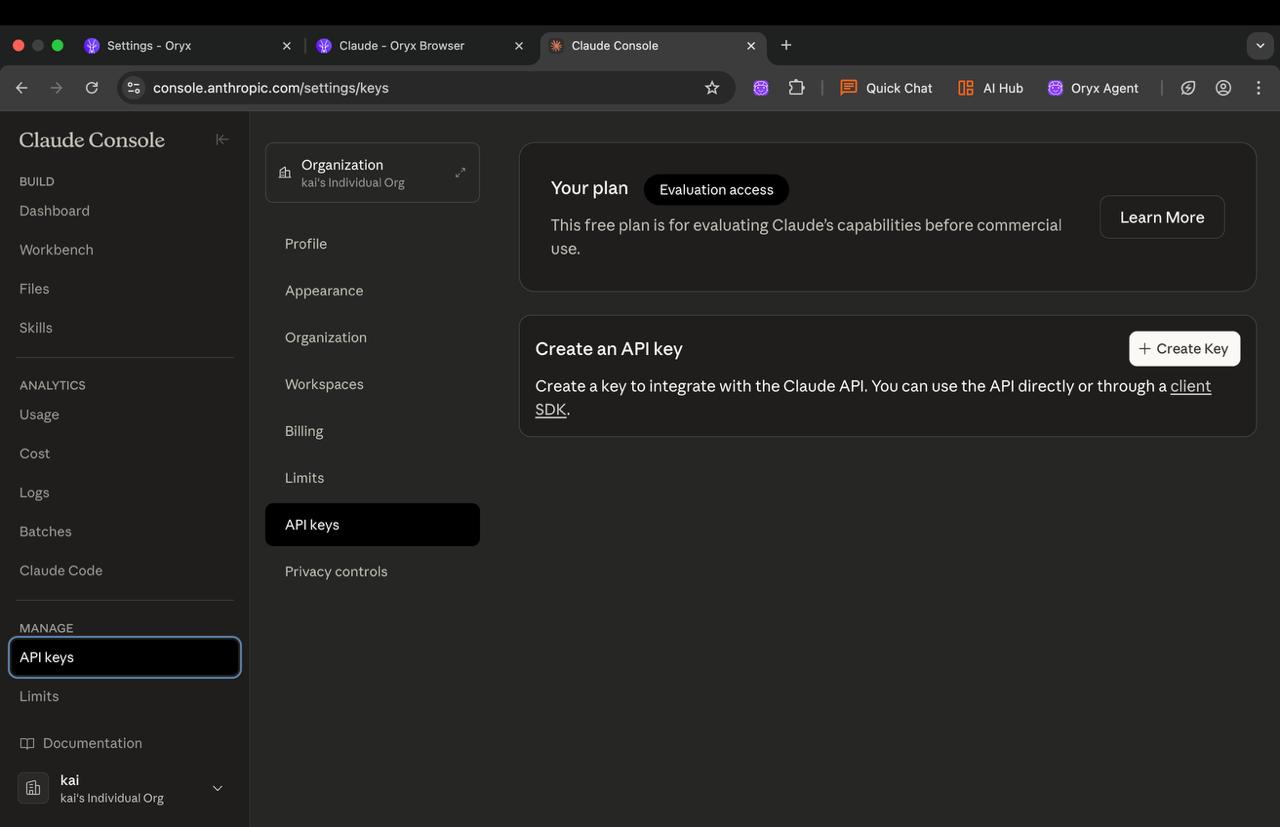
Click **Create Key**, name it, and click **Create Key** again. Copy the key that appears.
### Step 2: Create a key
Click **Create Key**, name it, and click **Create Key** again. Copy the key that appears.
 ## Configure Oryx
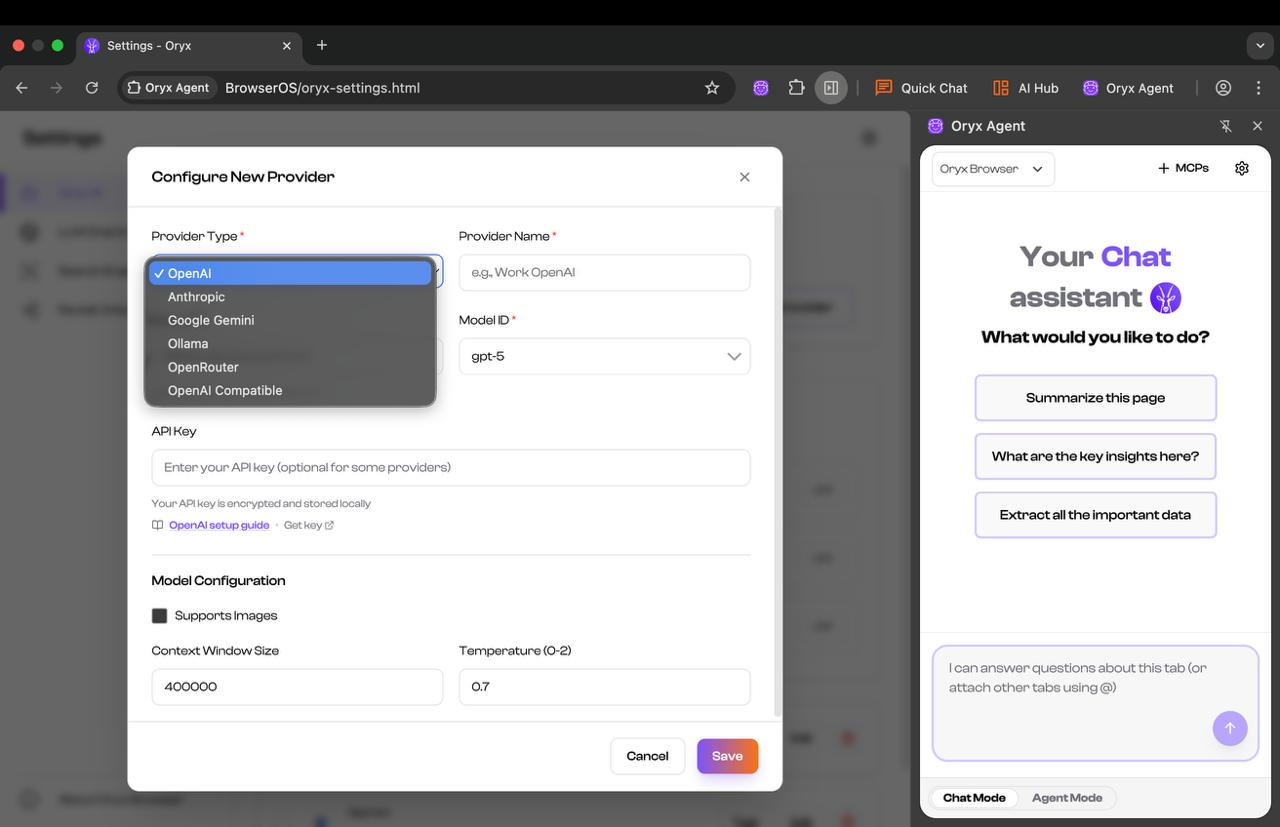
Click the settings icon in Oryx, then click **USE** on the Claude card. Paste your API key and set your model. For Claude Sonnet 4.0, use model ID `claude-opus-4-20250514`, set **Context Window Size** to `128000`, and check **Supports Images**. Click **Save**.
## Configure Oryx
Click the settings icon in Oryx, then click **USE** on the Claude card. Paste your API key and set your model. For Claude Sonnet 4.0, use model ID `claude-opus-4-20250514`, set **Context Window Size** to `128000`, and check **Supports Images**. Click **Save**.
 Done! You're ready to use Oryx with Claude.