> ## Documentation Index
> Fetch the complete documentation index at: https://docs.oryxai.io/llms.txt
> Use this file to discover all available pages before exploring further.
# Gemini
> Configure Oryx to use Google's Gemini AI model
Gemini 2.5 Flash is fast, powerful, and free. Google AI Studio gives you 20 requests per minute at no cost - perfect for Oryx.
## Get your API key
### Step 1: Go to Google AI Studio
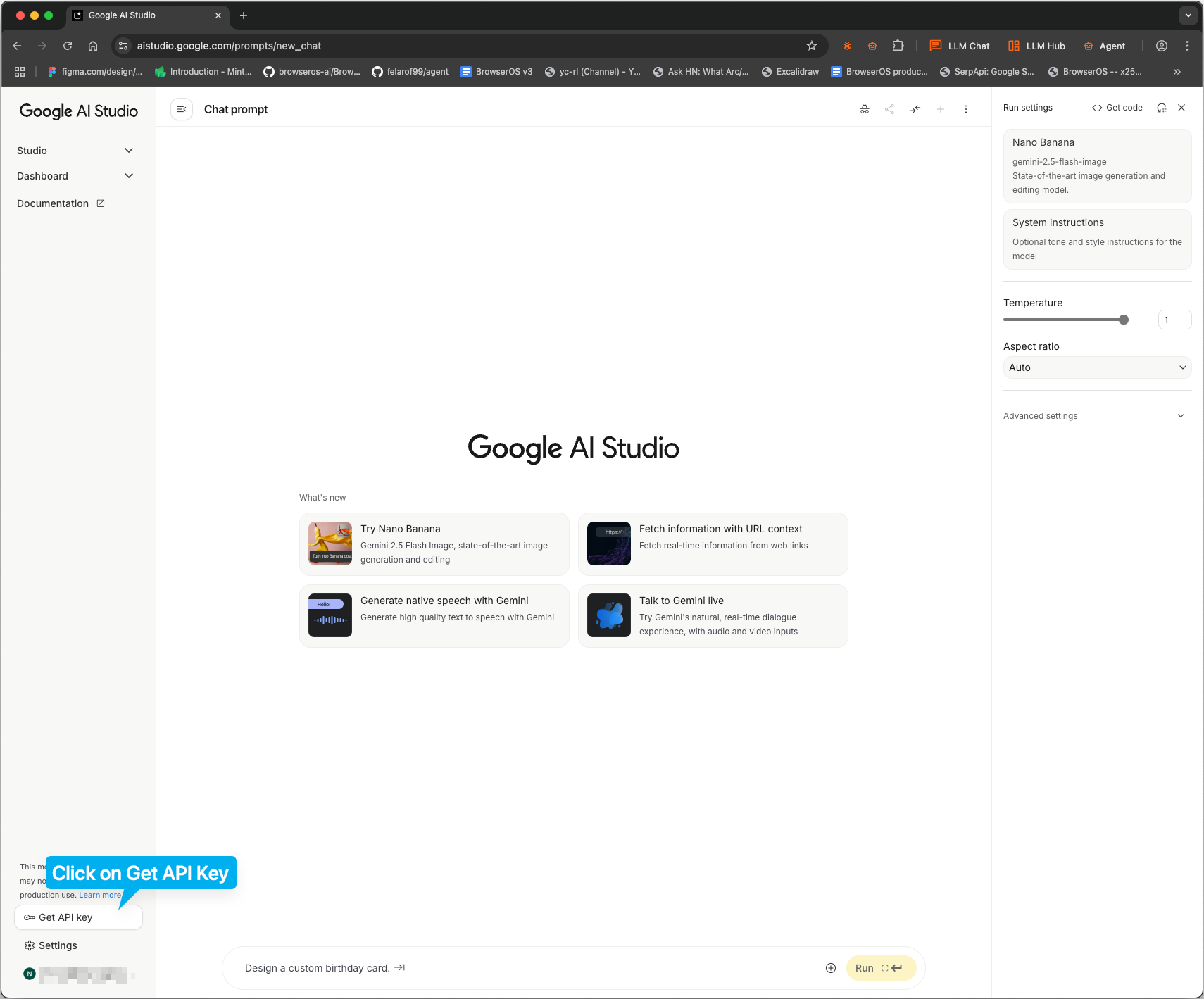
Visit [aistudio.google.com](https://aistudio.google.com) and click **Get API key** in the left sidebar.
 ### Step 2: Create a new project
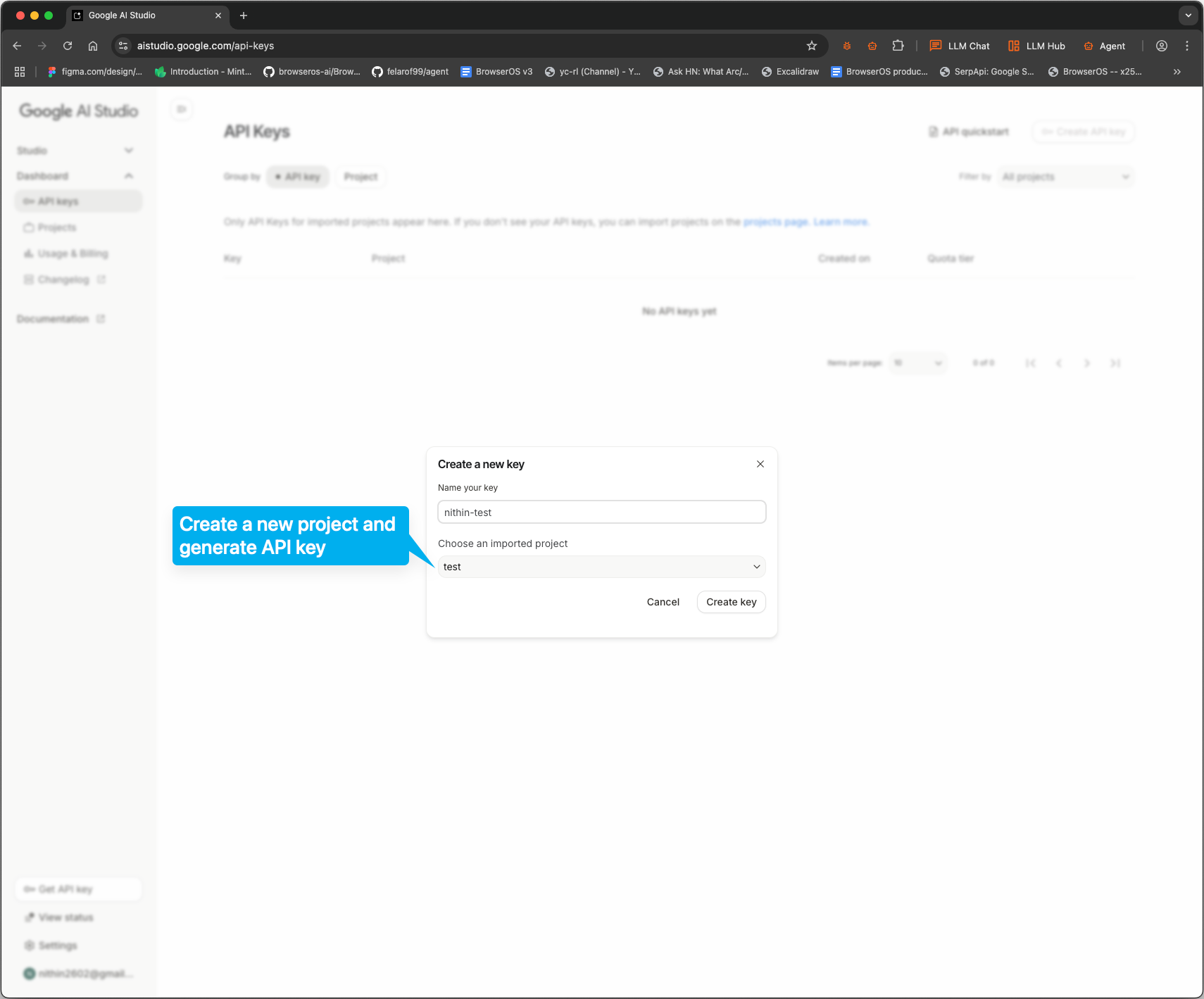
Click **Create API key**, then name your project and click **Create key**.
### Step 2: Create a new project
Click **Create API key**, then name your project and click **Create key**.
 ### Step 3: Copy your API key
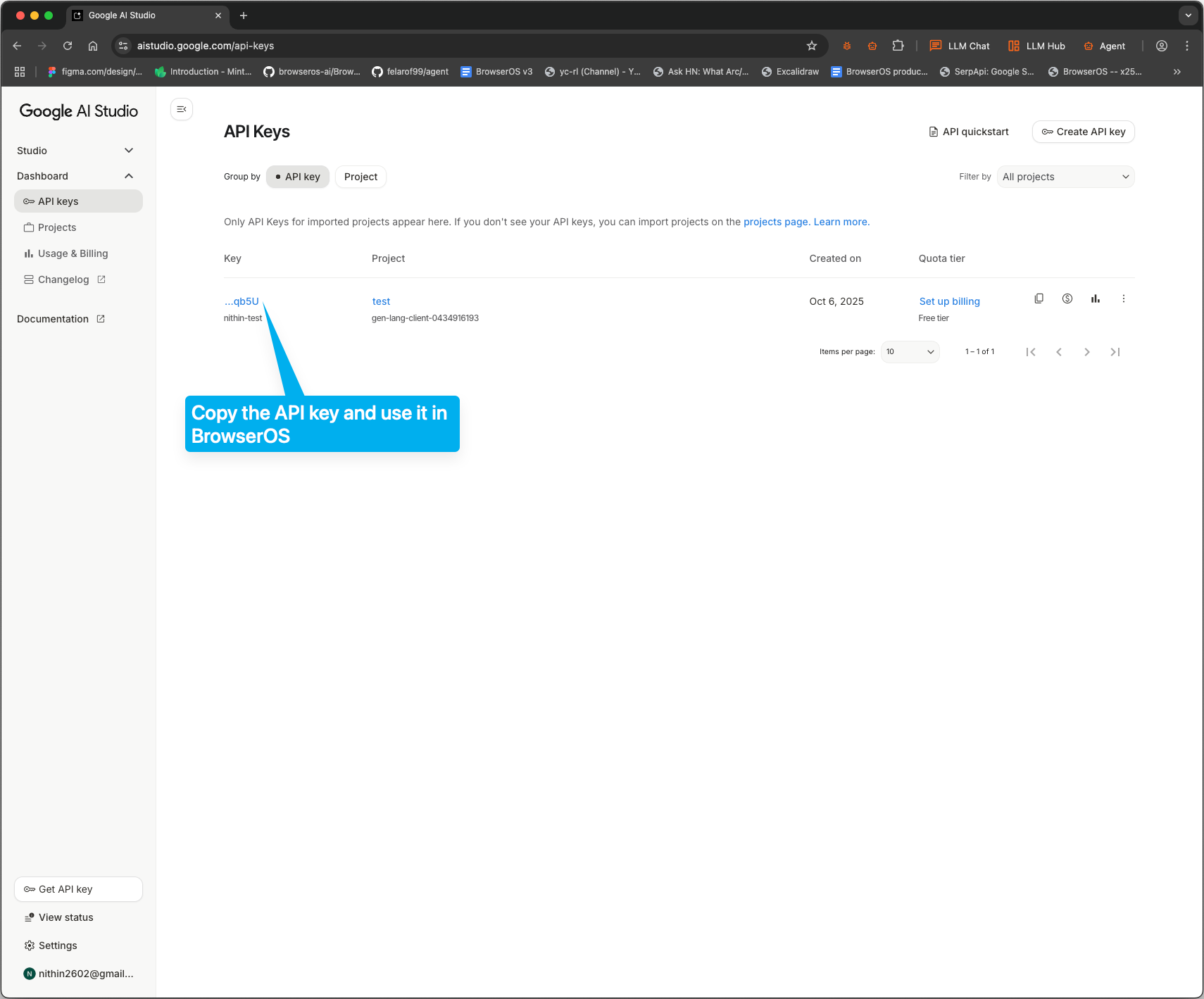
Your key will appear in the list. Click on it to copy.
### Step 3: Copy your API key
Your key will appear in the list. Click on it to copy.
 ## Configure Oryx
### Step 1: Open LLM settings
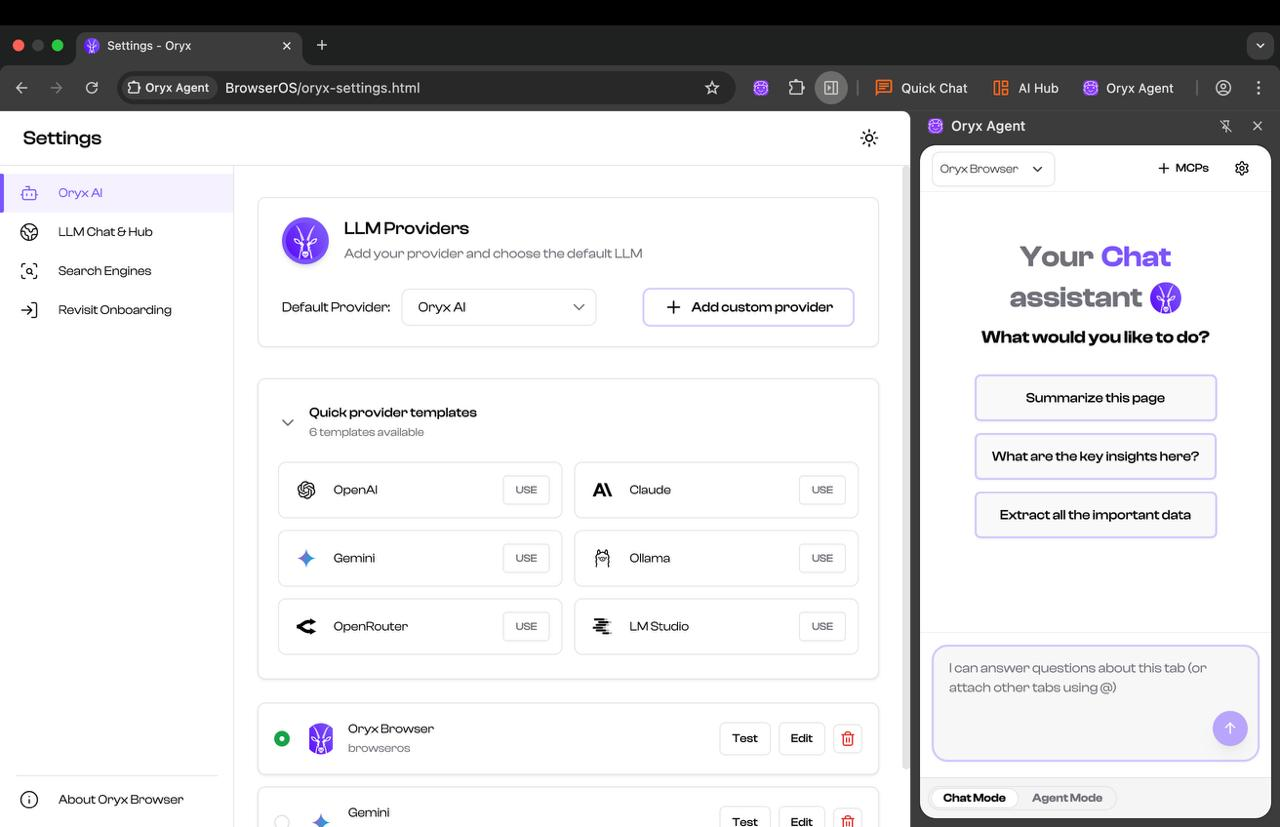
Click the settings icon in Oryx, then click **USE** on the Gemini card.
## Configure Oryx
### Step 1: Open LLM settings
Click the settings icon in Oryx, then click **USE** on the Gemini card.
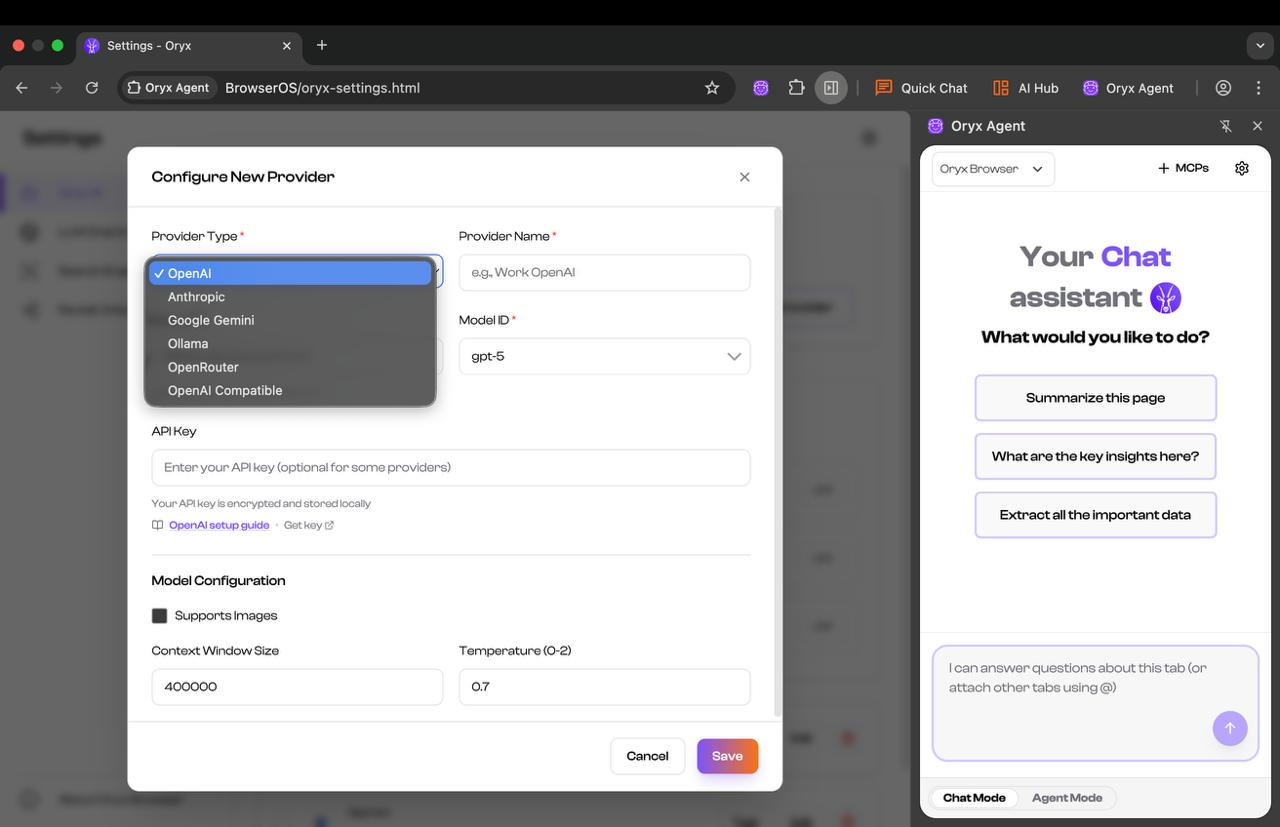
 ### Step 2: Configure your provider
In the provider configuration:
1. Set **Model ID** to `gemini-2.5-flash`
2. Paste your API key in the **API Key** field
3. Check **Supports Images**
4. Set **Context Window Size** to `1000000` (1 million tokens)
5. Click **Save**
### Step 2: Configure your provider
In the provider configuration:
1. Set **Model ID** to `gemini-2.5-flash`
2. Paste your API key in the **API Key** field
3. Check **Supports Images**
4. Set **Context Window Size** to `1000000` (1 million tokens)
5. Click **Save**
 Done! You're ready to use Oryx with Gemini.