> ## Documentation Index
> Fetch the complete documentation index at: https://docs.oryxai.io/llms.txt
> Use this file to discover all available pages before exploring further.
# Open Router
> Configure Oryx to use Open Router for access to multiple AI models
OpenRouter gives you access to 500+ models through one API. Try different models without managing multiple API keys.
## Get your API key
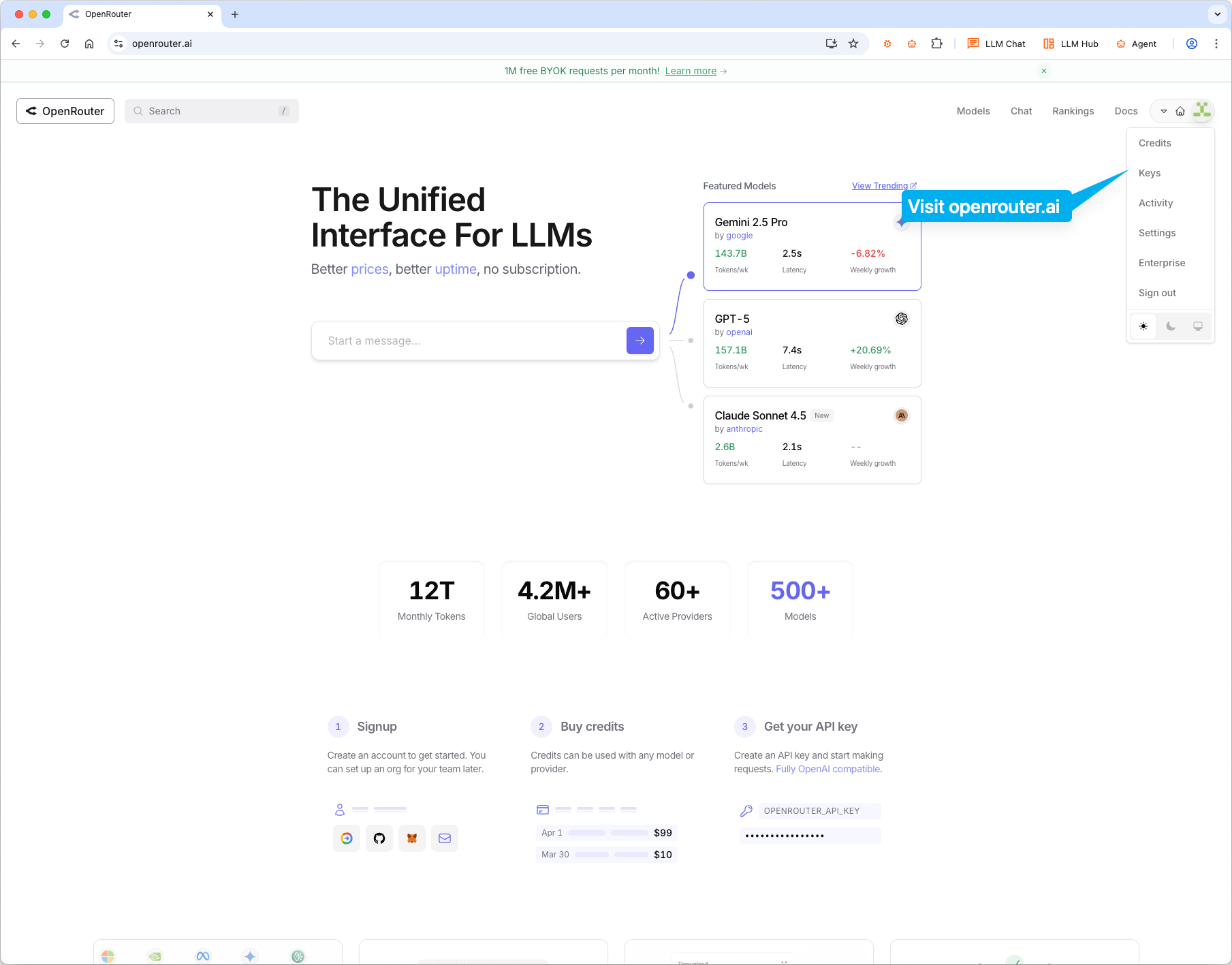
Visit [openrouter.ai](https://openrouter.ai), sign up, and create an API key. OpenRouter shows your key right on the homepage under "Get your API key".
 ## Configure Oryx
### Step 1: Add OpenRouter provider
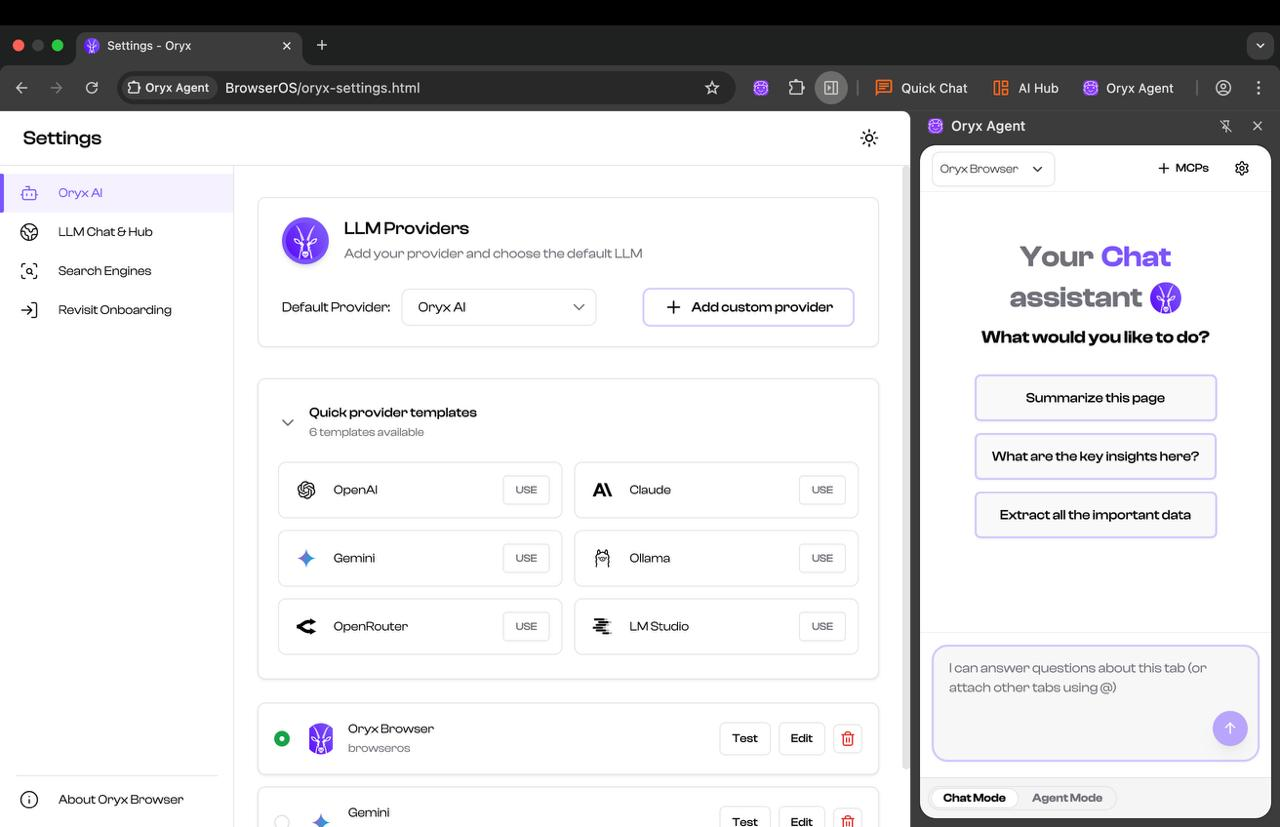
Click the settings icon in Oryx, then click **USE** on the OpenRouter card.
## Configure Oryx
### Step 1: Add OpenRouter provider
Click the settings icon in Oryx, then click **USE** on the OpenRouter card.
 ### Step 2: Pick a model
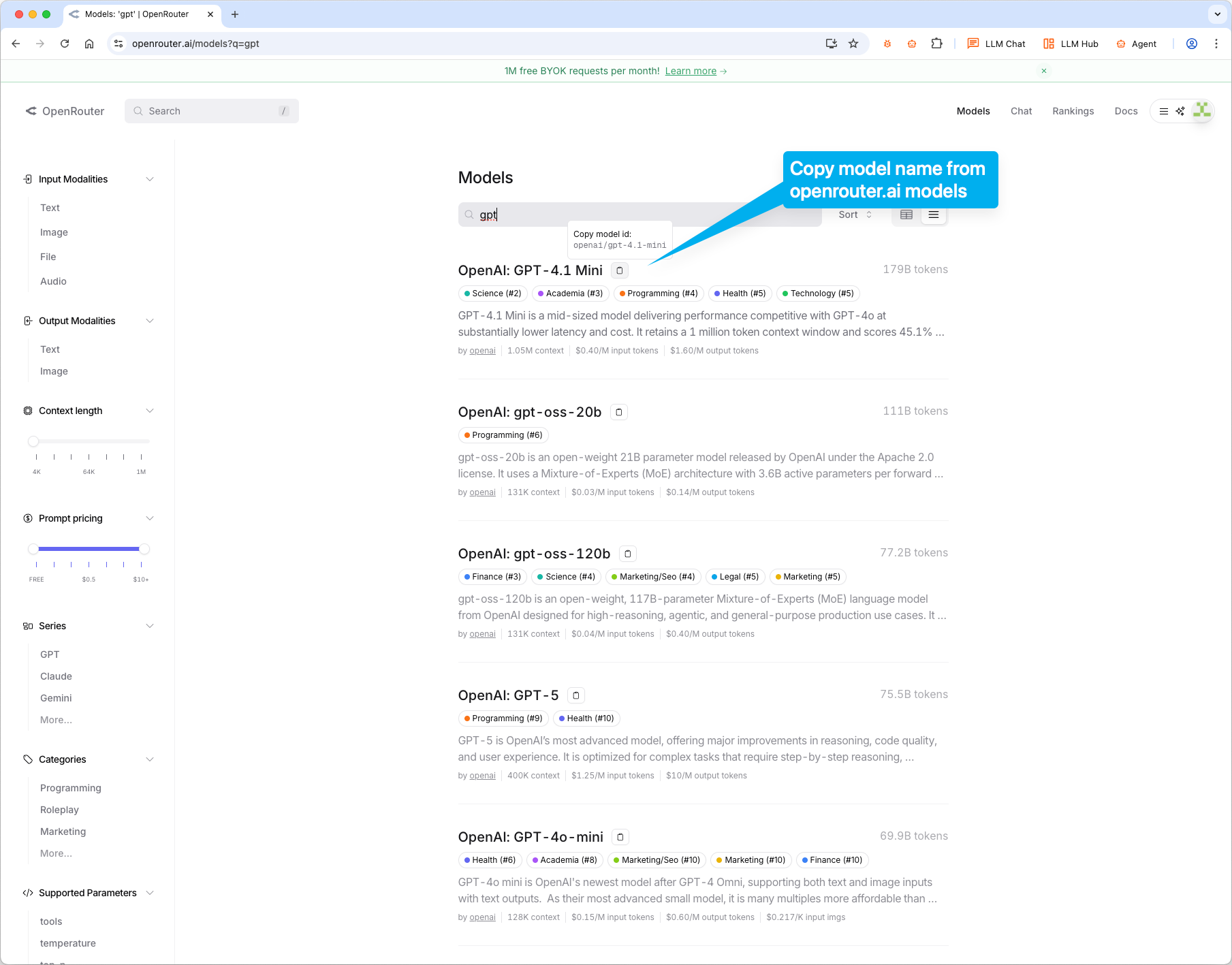
Visit [openrouter.ai/models](https://openrouter.ai/models) and find the model you want. Click on it to copy the model ID (like `openai/gpt-4.1-mini`).
### Step 2: Pick a model
Visit [openrouter.ai/models](https://openrouter.ai/models) and find the model you want. Click on it to copy the model ID (like `openai/gpt-4.1-mini`).
 ### Step 3: Configure your provider
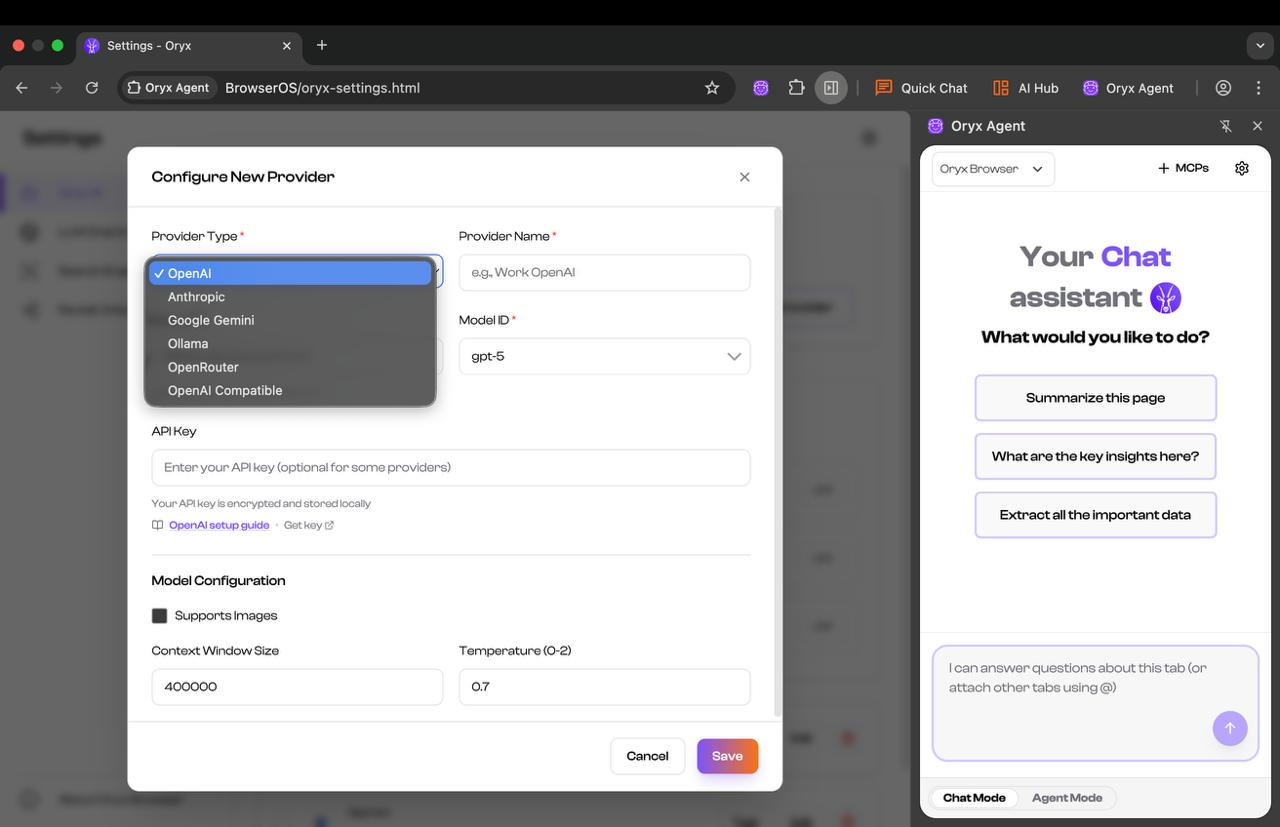
In Oryx, paste the model ID into **Model ID** field. The model ID should be in the format shown under "Custom" (e.g., `openai/gpt-4.1-mini`). Paste your OpenRouter API key, set **Context Window Size** based on the model, and check **Supports Images** if the model supports it. Click **Save**.
### Step 3: Configure your provider
In Oryx, paste the model ID into **Model ID** field. The model ID should be in the format shown under "Custom" (e.g., `openai/gpt-4.1-mini`). Paste your OpenRouter API key, set **Context Window Size** based on the model, and check **Supports Images** if the model supports it. Click **Save**.
 Done! You can switch between different models anytime by creating new providers with different model IDs.