> ## Documentation Index
> Fetch the complete documentation index at: https://docs.oryxai.io/llms.txt
> Use this file to discover all available pages before exploring further.
# Using OpenAI's GPT-OSS
> Complete guide to running OpenAI's GPT-OSS model locally with LM Studio
## Complete Setup Guide
This guide will walk you through setting up and using OpenAI's GPT-OSS model with LM Studio and Oryx.
## Step 1: Setup LM Studio and Download GPT-OSS
Download LM Studio from [https://lmstudio.ai/](https://lmstudio.ai/)
Click on **Discover** in LM Studio (the 🔍 icon on the left).
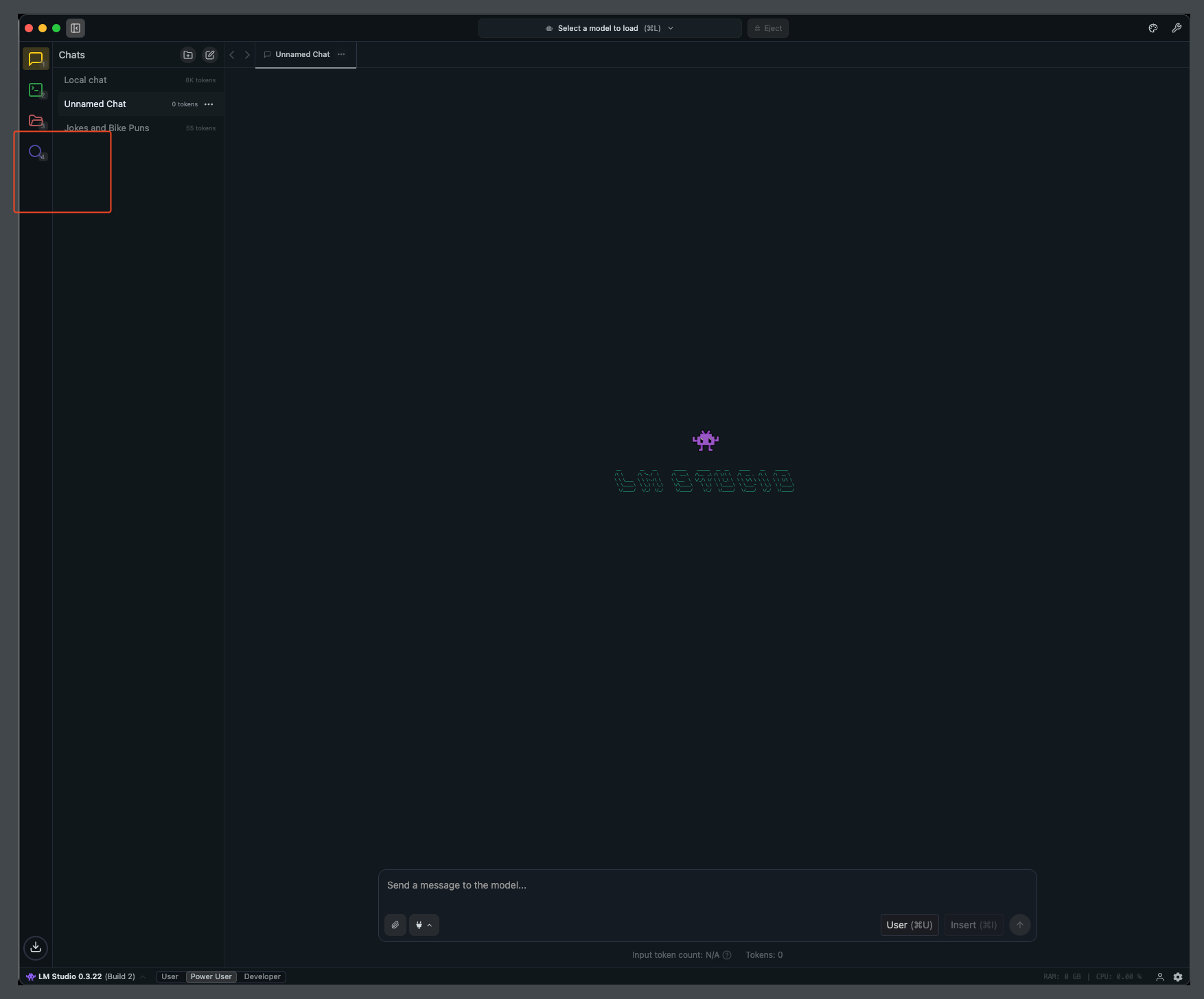 Search for `gpt-oss-20b` and click **Download**.
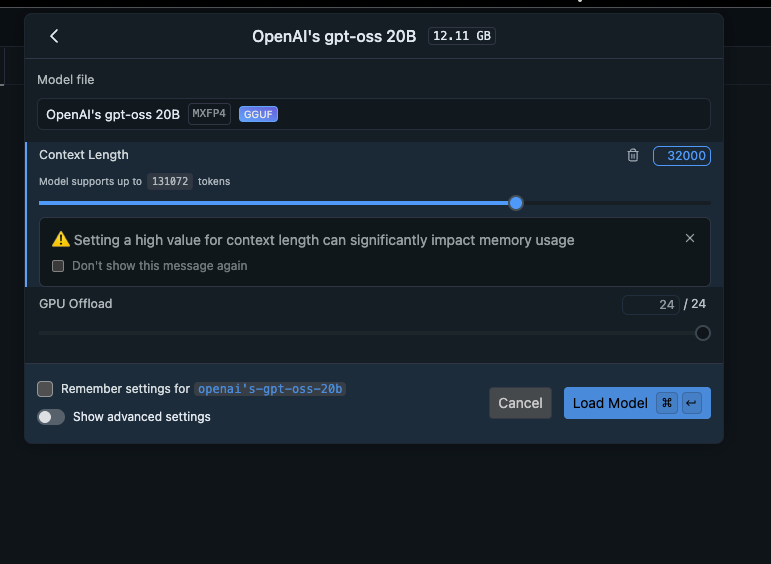
 After download finishes, load the model.
 Enable the flag to choose model parameters on load
 Set context length to **32768** (adjust based on your hardware) and load the model.
 ## Step 2: Configure Oryx to use LM Studio
Navigate to `chrome://settings/oryx` and click **Add Provider**.
Choose **OpenAI Compatible** as the Provider Type.
## Step 2: Configure Oryx to use LM Studio
Navigate to `chrome://settings/oryx` and click **Add Provider**.
Choose **OpenAI Compatible** as the Provider Type.
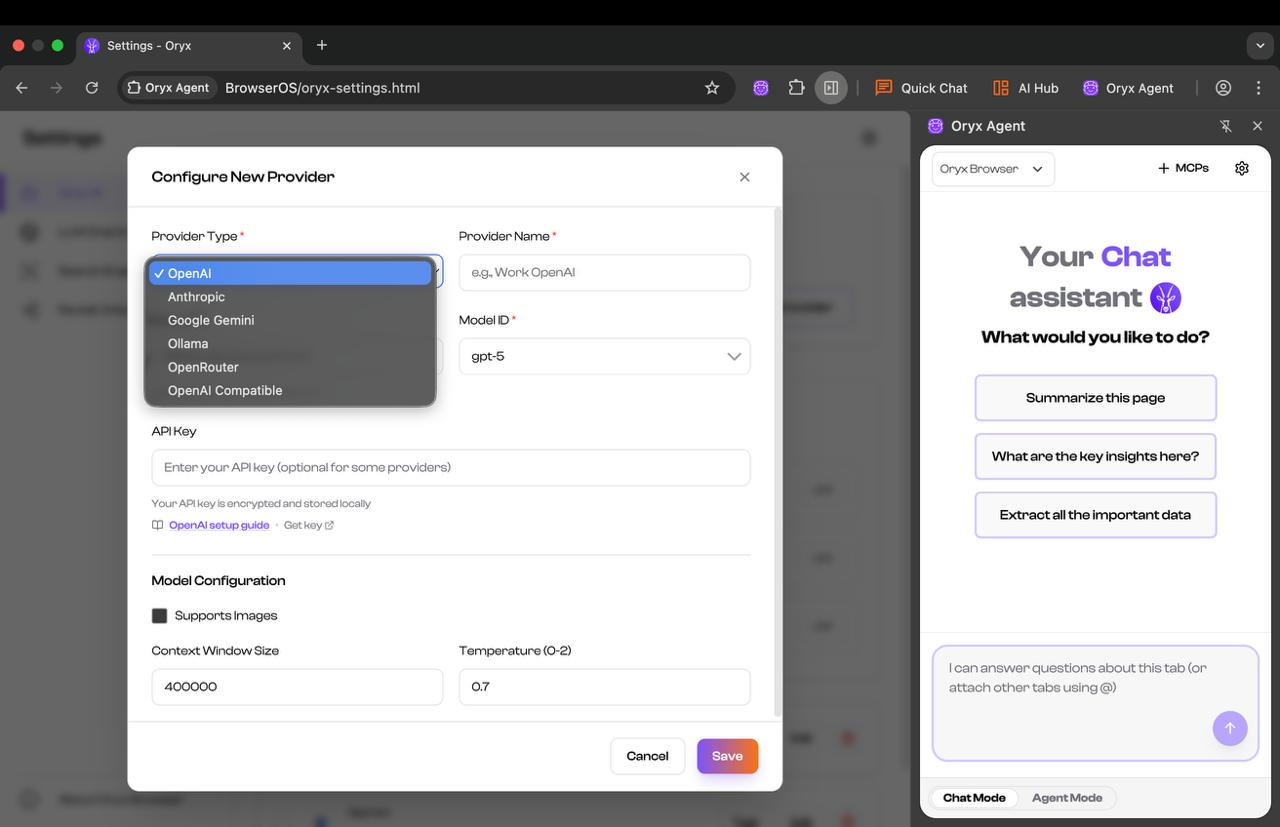 * Set Base URL to `http://127.0.0.1:1234/v1`
* Set Model ID to `openai/gpt-oss-20b`
* Set context length to **32768**
* Save your configuration
* Set Base URL to `http://127.0.0.1:1234/v1`
* Set Model ID to `openai/gpt-oss-20b`
* Set context length to **32768**
* Save your configuration
 Change the default provider to **lmstudio** and you're ready to go!
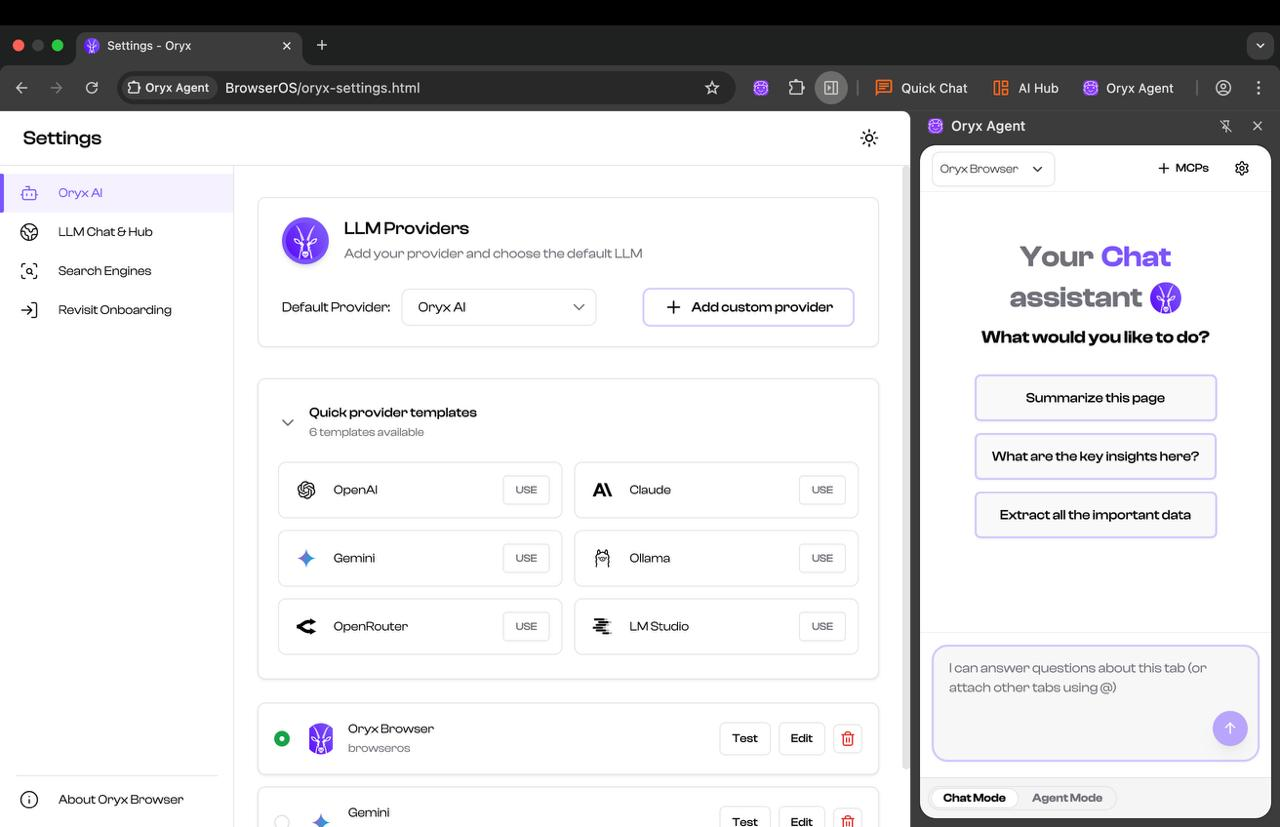 You can now use GPT-OSS from the Agent!
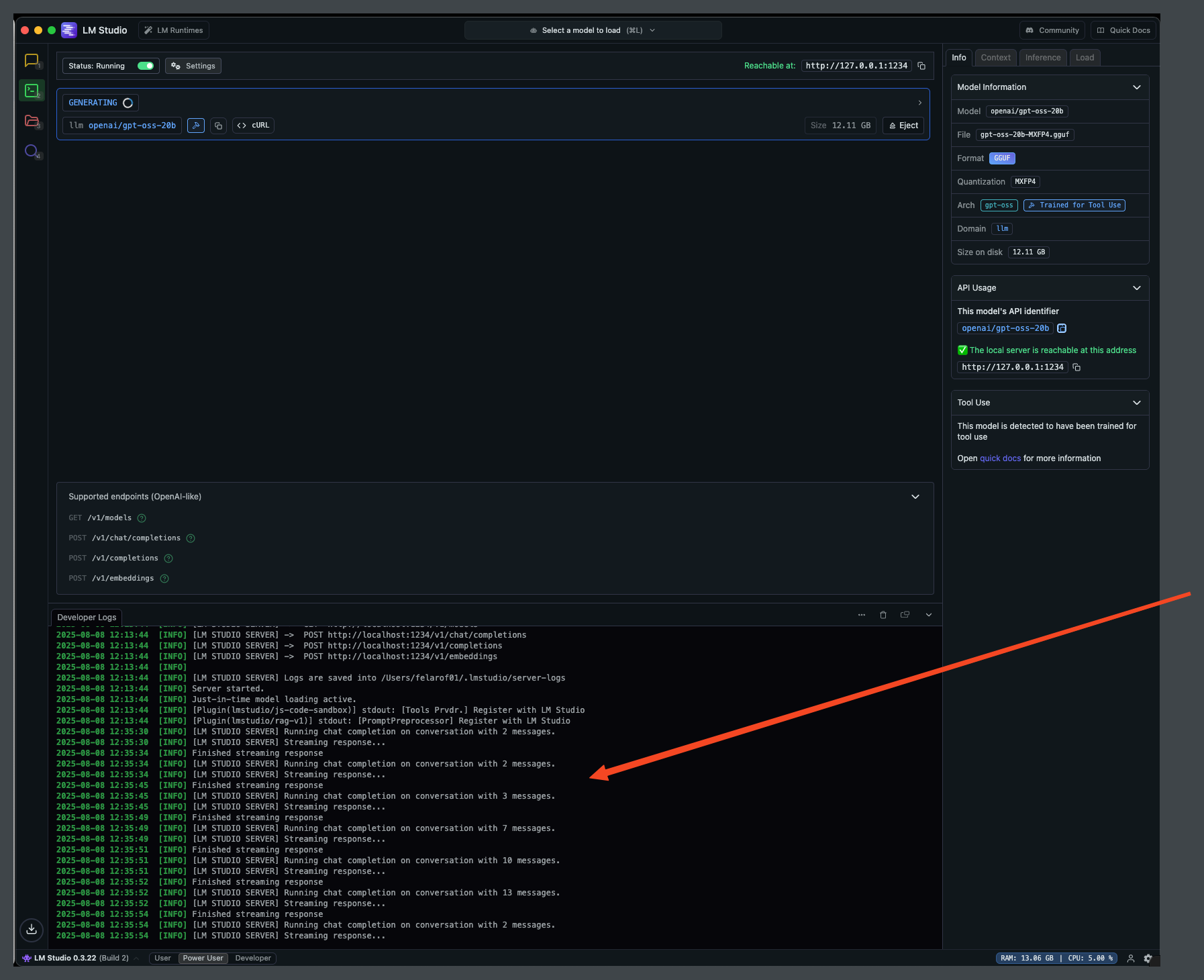
If everything is set up correctly, you should see messages in LM Studio:
You can now use GPT-OSS from the Agent!
If everything is set up correctly, you should see messages in LM Studio:
 ## Configuration Summary
* Model: `openai/gpt-oss-20b` - Context Length: 32768 - Server:
`http://127.0.0.1:1234/v1`
* Provider Type: OpenAI Compatible - Base URL: `http://127.0.0.1:1234/v1` -
Model ID: `openai/gpt-oss-20b` - Context Window: 32768
## Troubleshooting
* Verify LM Studio is running and the model is loaded - Check the server logs
in LM Studio for any errors - Ensure the Base URL is correct
([http://127.0.0.1:1234/v1](http://127.0.0.1:1234/v1))
* Make sure the context length in Oryx matches LM Studio - Reduce context
length if you're running out of memory - Consider using a smaller model if
hardware is limited
## Configuration Summary
* Model: `openai/gpt-oss-20b` - Context Length: 32768 - Server:
`http://127.0.0.1:1234/v1`
* Provider Type: OpenAI Compatible - Base URL: `http://127.0.0.1:1234/v1` -
Model ID: `openai/gpt-oss-20b` - Context Window: 32768
## Troubleshooting
* Verify LM Studio is running and the model is loaded - Check the server logs
in LM Studio for any errors - Ensure the Base URL is correct
([http://127.0.0.1:1234/v1](http://127.0.0.1:1234/v1))
* Make sure the context length in Oryx matches LM Studio - Reduce context
length if you're running out of memory - Consider using a smaller model if
hardware is limited