> ## Documentation Index
> Fetch the complete documentation index at: https://docs.oryxai.io/llms.txt
> Use this file to discover all available pages before exploring further.
# Setting up LM Studio
> Configure LM Studio to run local LLMs with Oryx
## Setup Guide
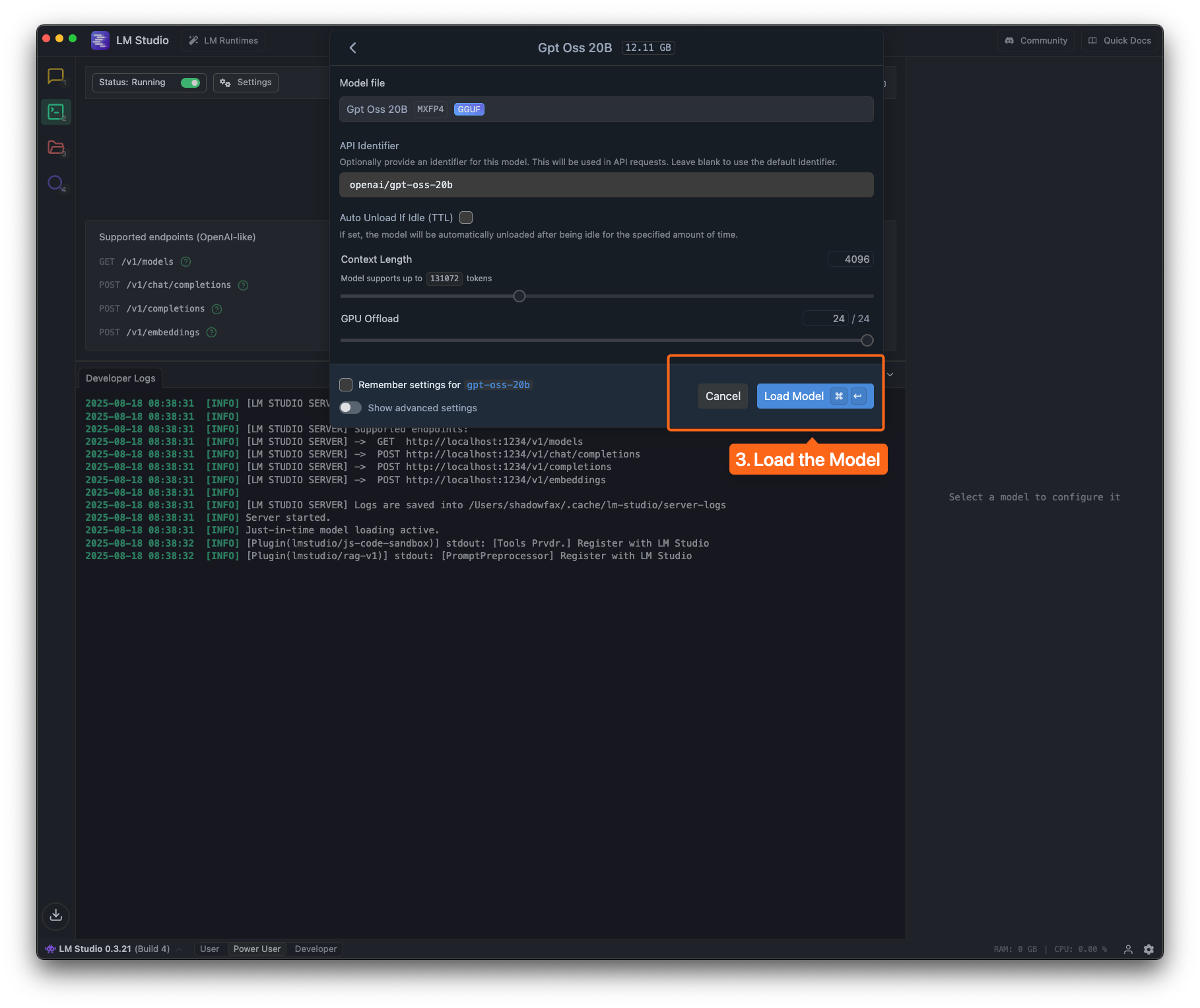
Open LM Studio, navigate to the **Developer** page and select the desired model to load.
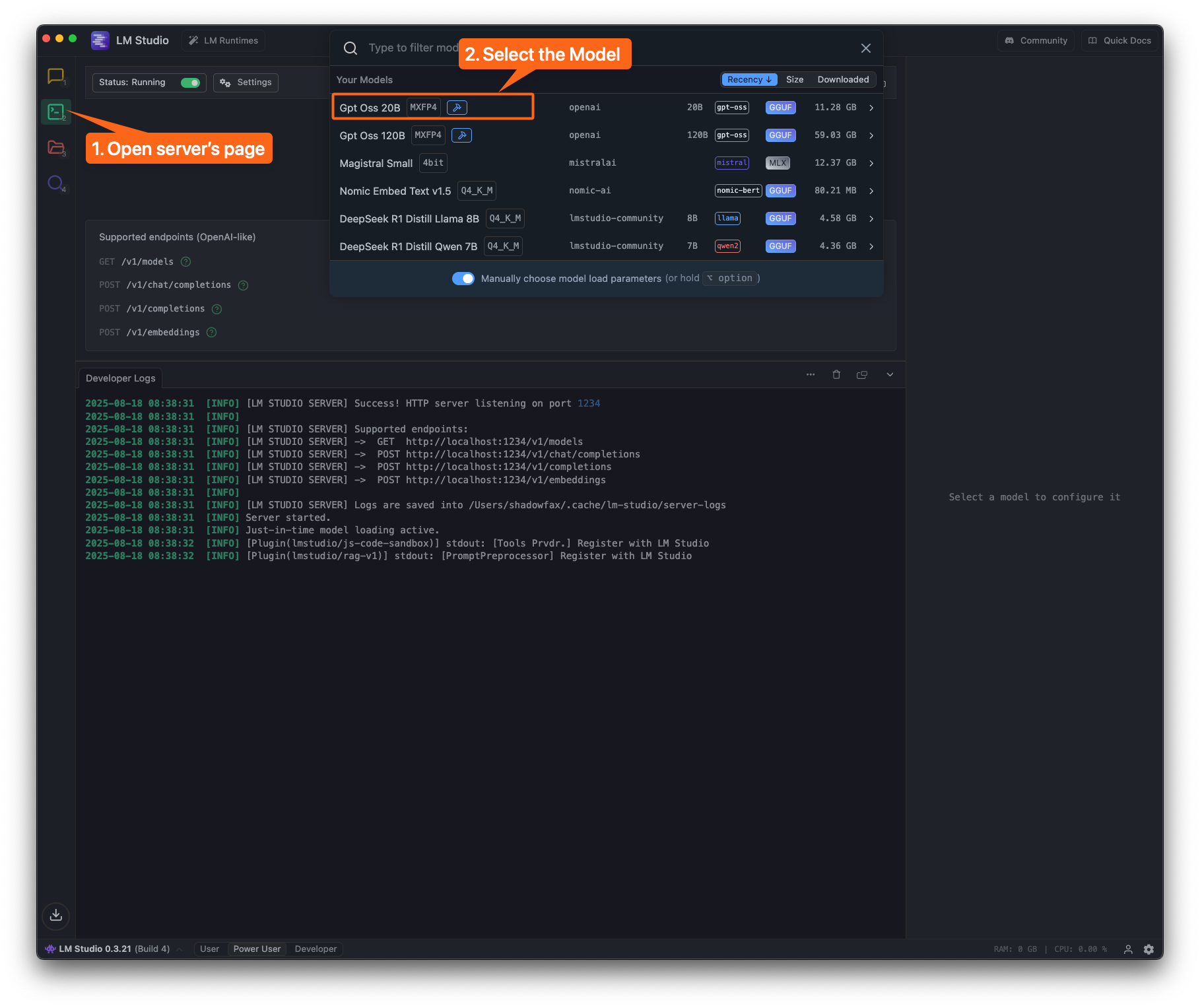 In this example, we're loading the `openai/gpt-oss-20b` model.
 * Navigate to `chrome://settings/Oryx` or go to **Settings → Oryx AI**
* Click **Add Provider**
* Select **OpenAI Compatible** in the Provider Type dropdown
* Navigate to `chrome://settings/Oryx` or go to **Settings → Oryx AI**
* Click **Add Provider**
* Select **OpenAI Compatible** in the Provider Type dropdown
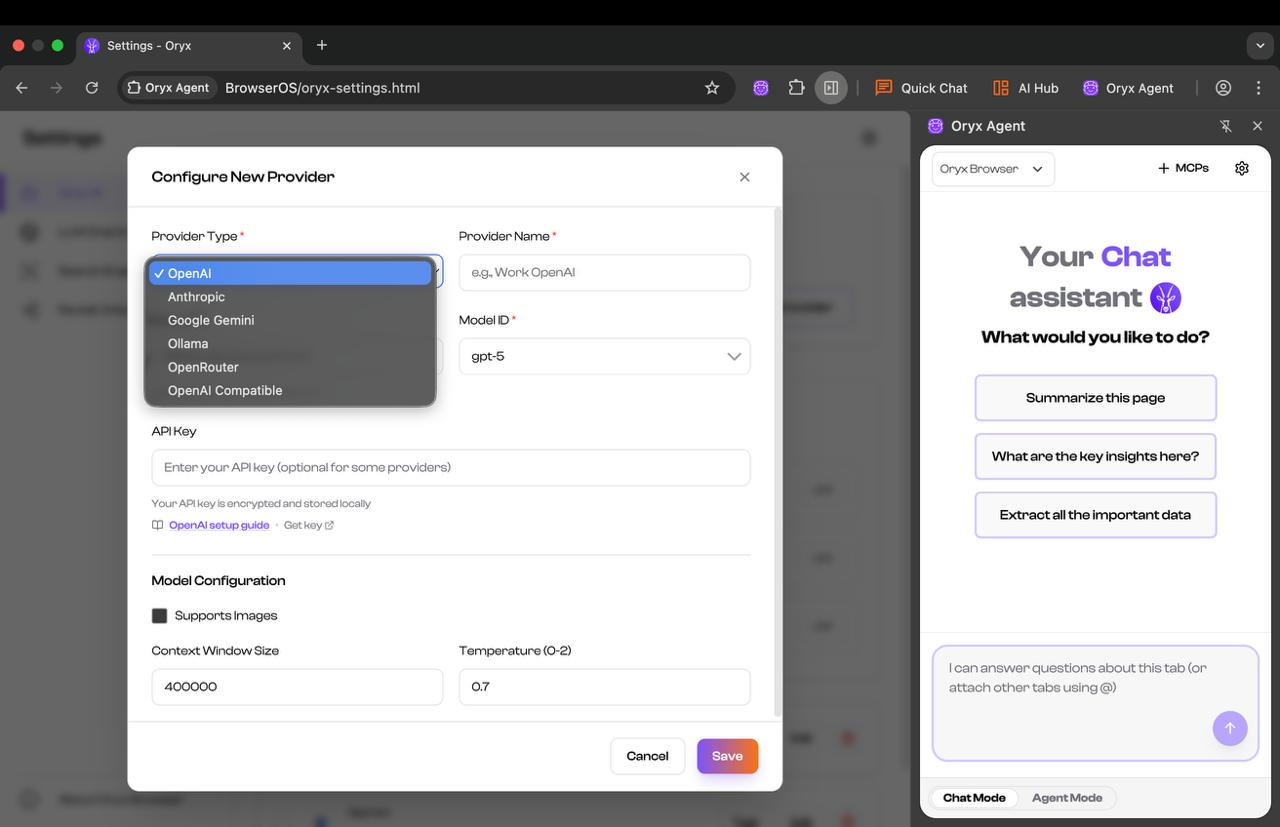 * Replace the Base URL with LM Studio URL (default: `http://localhost:1234/v1/`)
* Set the Model ID to the one you loaded in LM Studio
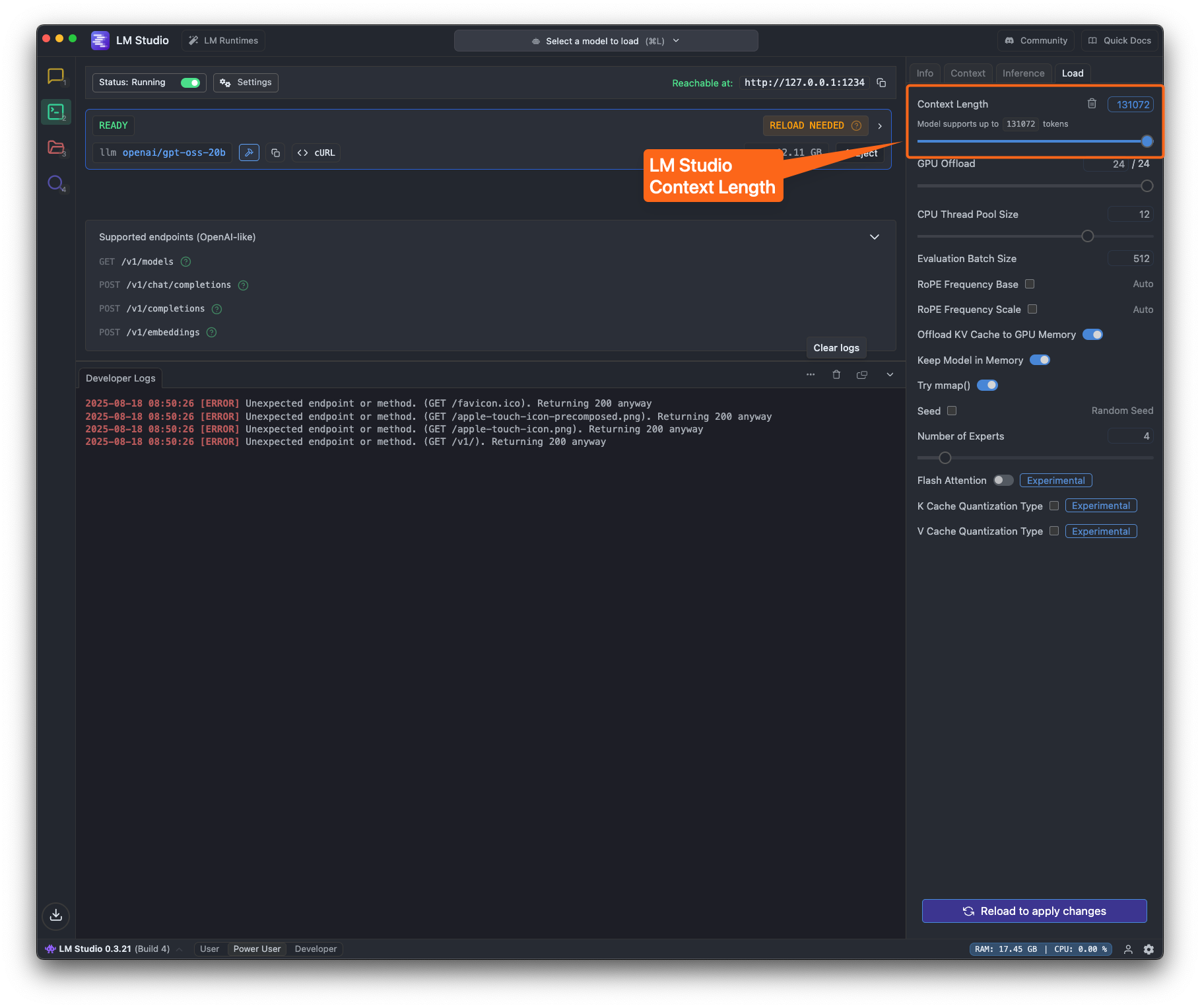
* **Important:** Set the **Context Window Size** to match your LM Studio configuration
* Replace the Base URL with LM Studio URL (default: `http://localhost:1234/v1/`)
* Set the Model ID to the one you loaded in LM Studio
* **Important:** Set the **Context Window Size** to match your LM Studio configuration
 Select the model in Oryx agent and start using it! 🎉
Ensure the Context Window Size in Oryx matches what you configured in LM
Studio to avoid issues with long conversations.
## Configuration Details
* **Base URL**: `http://localhost:1234/v1/` - **Provider Type**: OpenAI
Compatible - **Context Window**: Depends on your model and hardware (typically
2048-32768)
LM Studio supports various models including: - OpenAI GPT-OSS series - LLaMA
and derivatives - Mistral models - And many more from Hugging Face
Select the model in Oryx agent and start using it! 🎉
Ensure the Context Window Size in Oryx matches what you configured in LM
Studio to avoid issues with long conversations.
## Configuration Details
* **Base URL**: `http://localhost:1234/v1/` - **Provider Type**: OpenAI
Compatible - **Context Window**: Depends on your model and hardware (typically
2048-32768)
LM Studio supports various models including: - OpenAI GPT-OSS series - LLaMA
and derivatives - Mistral models - And many more from Hugging Face