

- Use models locally - Run AI on your machine for complete privacy
- Bring your own API keys - Use cloud providers like ChatGPT, Gemini, or Claude
chrome://settings/oryx to configure your AI provider.
Our recommendation: Oryx works best with Gemini 2.5 Flash. We highly
recommend getting an API key from Google AI Studio for Gemini 2.5 Flash.
Google AI Studio gives free access to Gemini 2.5 Flash models for up to 20
requests per minute - perfect for getting started without any costs.
Why bring your own API keys or use local models?
🔒 Privacy - You control your data
🔒 Privacy - You control your data
Your API keys are stored locally and encrypted. Requests go directly from
your browser to the provider - Oryx servers never see your data or keys.
With local models, your data never even leaves your machine.
⚡ No limits - Use Oryx freely
⚡ No limits - Use Oryx freely
Oryx has rate limits on the default shared models. For the smoothest
experience without interruptions, bring your own API keys or run models
locally. Command Oryx as much as you want without hitting limits.
Option 1: Bring your own keys to ChatGPT, Gemini, Claude! (Recommended)
Connect to powerful cloud models using your own API keys. Oryx works exceptionally well with Gemini 2.5 Flash for trading commands, contract analysis, and agentic workflows.Available Cloud Providers
Gemini (free)
Use Gemini-2.5-flash! Recommended.
Claude
Use Claude sonnet-3.7 or sonnet-4.0!
OpenAI
Use GPT-4.1 for best results!
Open Router
Access multiple AI models through one API!
Option 2: Using local AI LLM models
Running models locally gives you complete control and privacy. Your data stays on your machine, and there are no usage costs or API limits.Available Local Options
Ollama
Popular tool for running open-source models locally with easy model
management
LM Studio
User-friendly GUI for downloading and managing local language models
GPT-OSS
OpenAI’s open-source GPT model optimized for local execution
Recommended Models
For best results with local models:- gpt-oss:20B - Great balance of speed and capability
- qwen3:8B or qwen3:14B - Fast and good for chat-mode, but struggles with agentic tasks
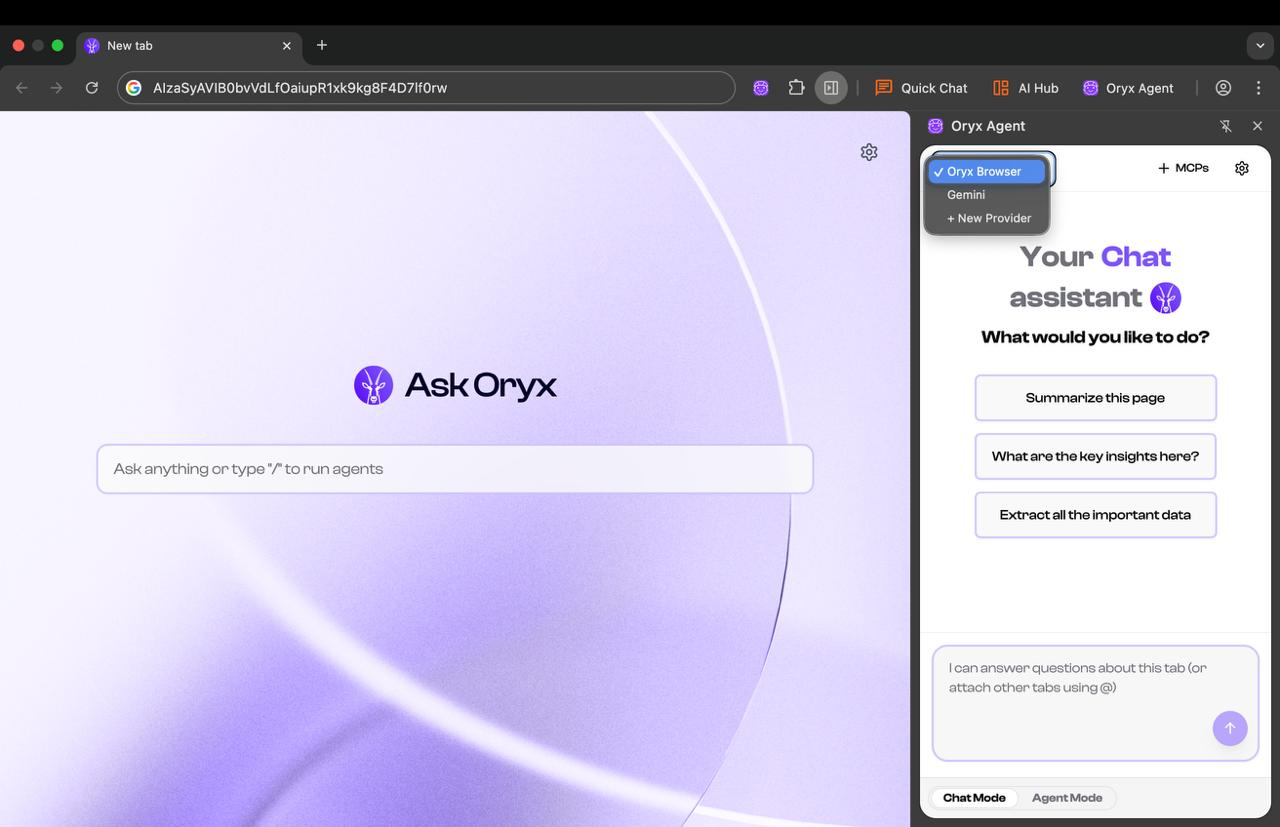
Switching Between Models
Use the switcher to change between different LLM providers.- Use local models for sensitive work data
- Switch to cloud models for agentic tasks.
Get $ORYX Token
Unlock premium automation tiers, advanced features, and governance rights
Next Steps
Once you’ve configured your AI provider, start commanding Oryx:- Use natural language commands for trading, research, and automation
- Try split-view AI to analyze contracts and whitepapers side-by-side
- Build custom agents to automate repetitive DeFi tasks
- Connect MCP servers to integrate your work tools