

Complete Setup Guide
This guide will walk you through setting up and using OpenAI’s GPT-OSS model with LM Studio and Oryx.Step 1: Setup LM Studio and Download GPT-OSS
1
Download LM Studio
Download LM Studio from https://lmstudio.ai/
2
Open Discovery Page
Click on Discover in LM Studio (the 🔍 icon on the left).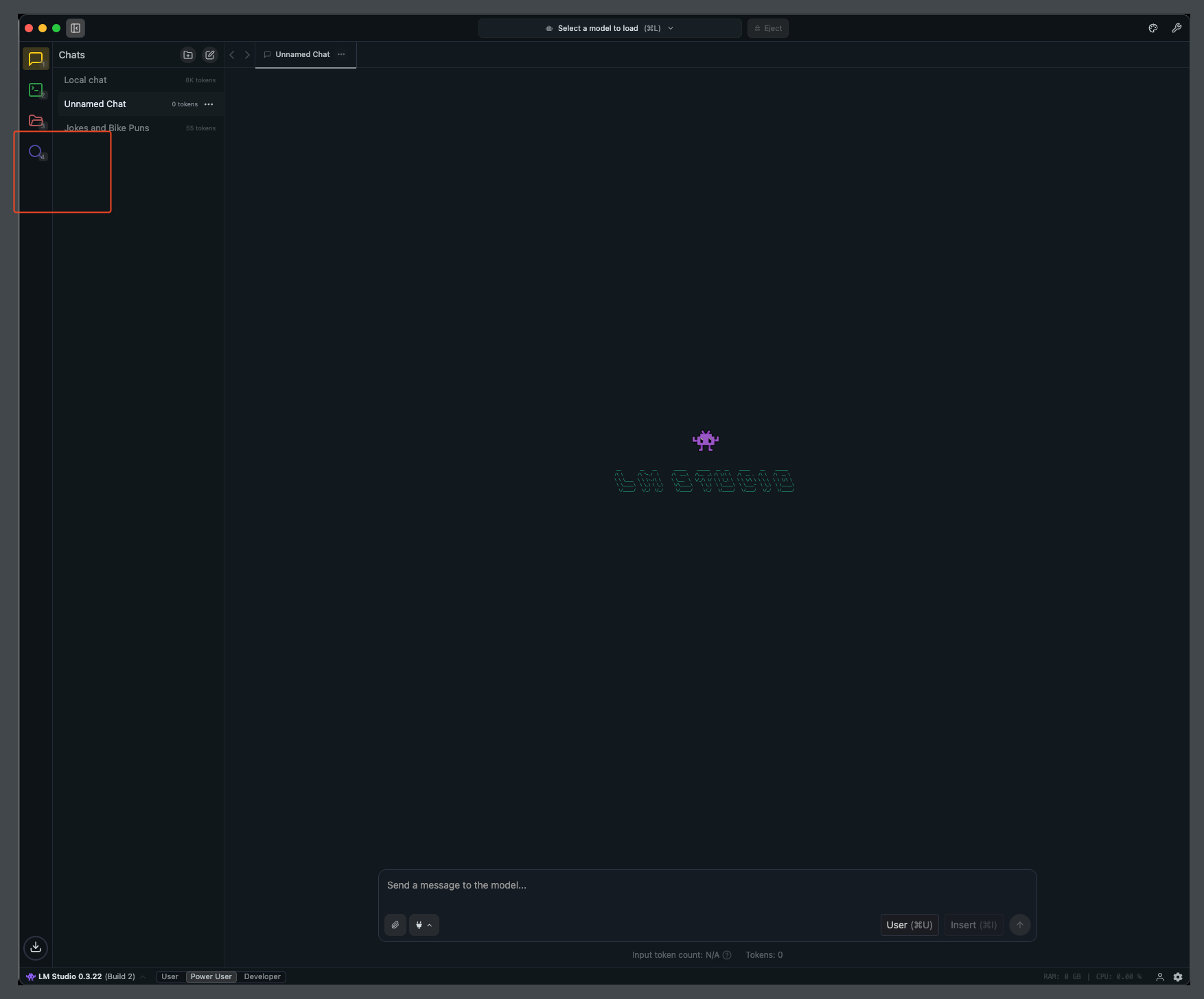
3
Search and Download Model
Search for 
gpt-oss-20b and click Download.4
Load the Model
After download finishes, load the model.

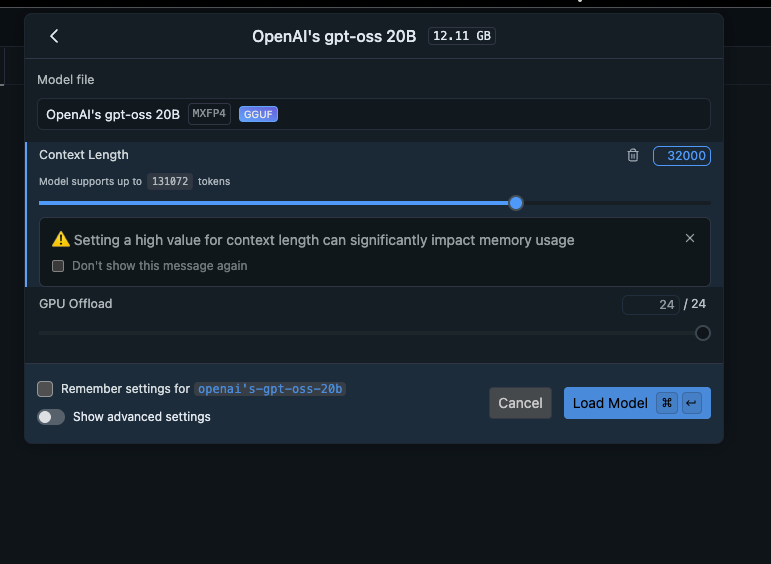
Enable the flag to choose model parameters on load
Step 2: Configure Oryx to use LM Studio
1
Add Provider
Navigate to 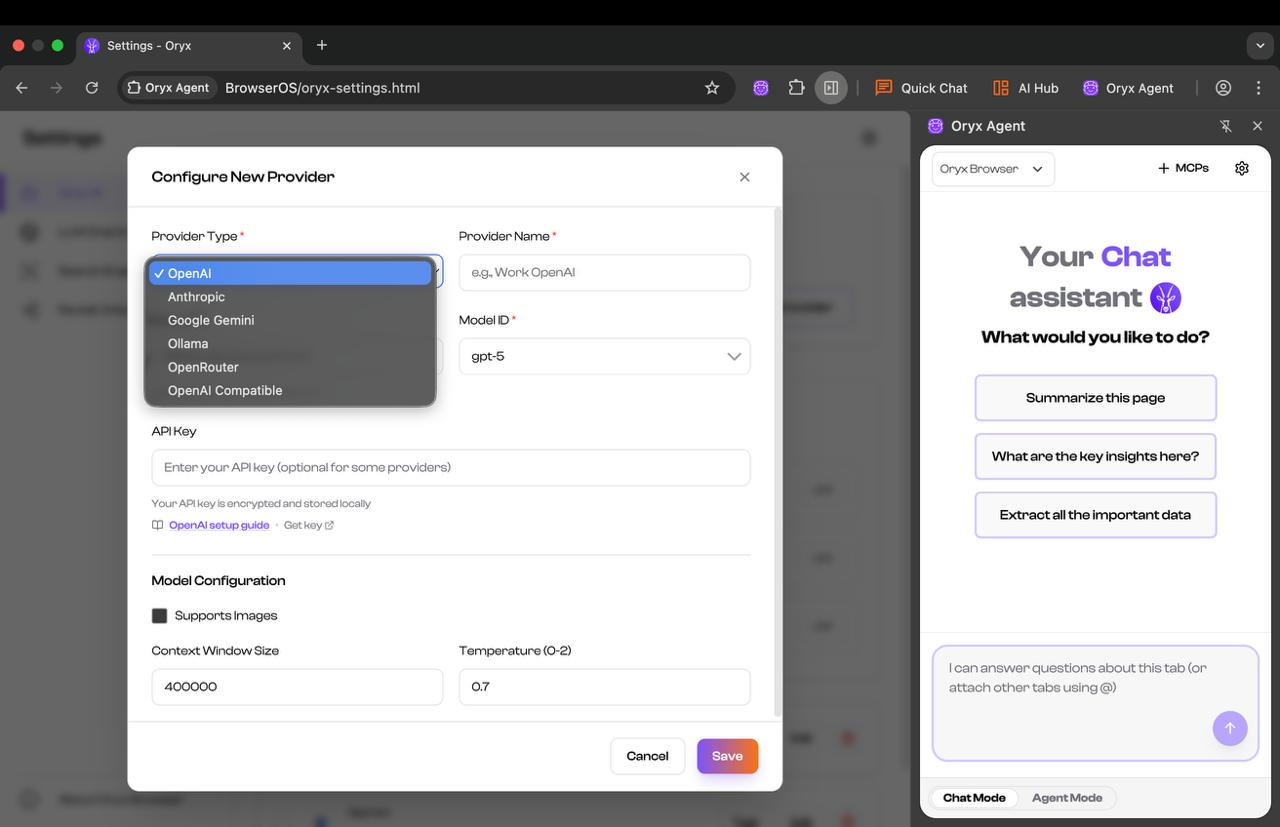
chrome://settings/oryx and click Add Provider.
Choose OpenAI Compatible as the Provider Type.2
Configure Connection
- Set Base URL to
http://127.0.0.1:1234/v1 - Set Model ID to
openai/gpt-oss-20b - Set context length to 32768
- Save your configuration

3
Set as Default
Change the default provider to lmstudio and you’re ready to go!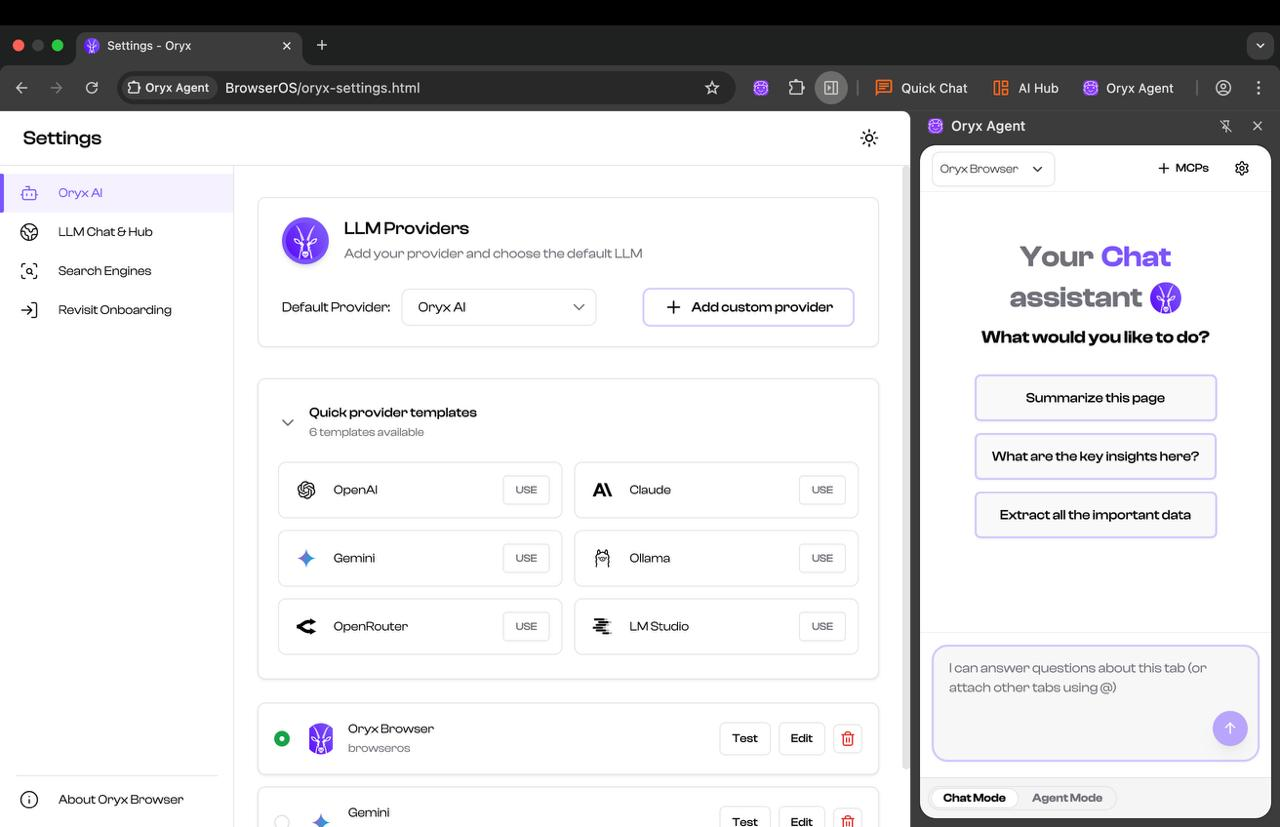
4
Start Using GPT-OSS
You can now use GPT-OSS from the Agent!If everything is set up correctly, you should see messages in LM Studio: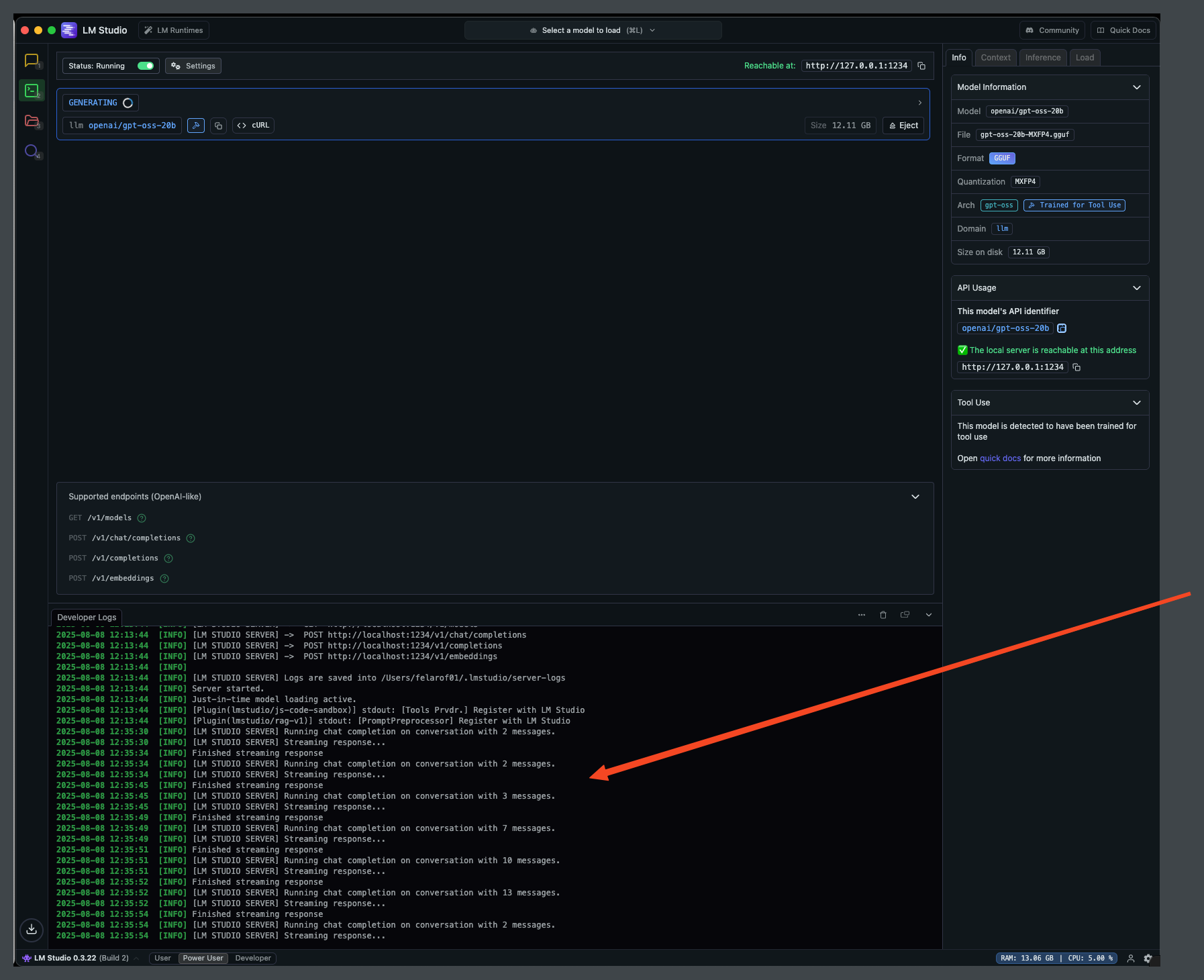
Configuration Summary
Troubleshooting
Model not responding
Model not responding
- Verify LM Studio is running and the model is loaded - Check the server logs in LM Studio for any errors - Ensure the Base URL is correct (http://127.0.0.1:1234/v1)
Context length errors
Context length errors
- Make sure the context length in Oryx matches LM Studio - Reduce context length if you’re running out of memory - Consider using a smaller model if hardware is limited