

Setup Guide
1
Open LM Studio
Open LM Studio, navigate to the Developer page and select the desired model to load.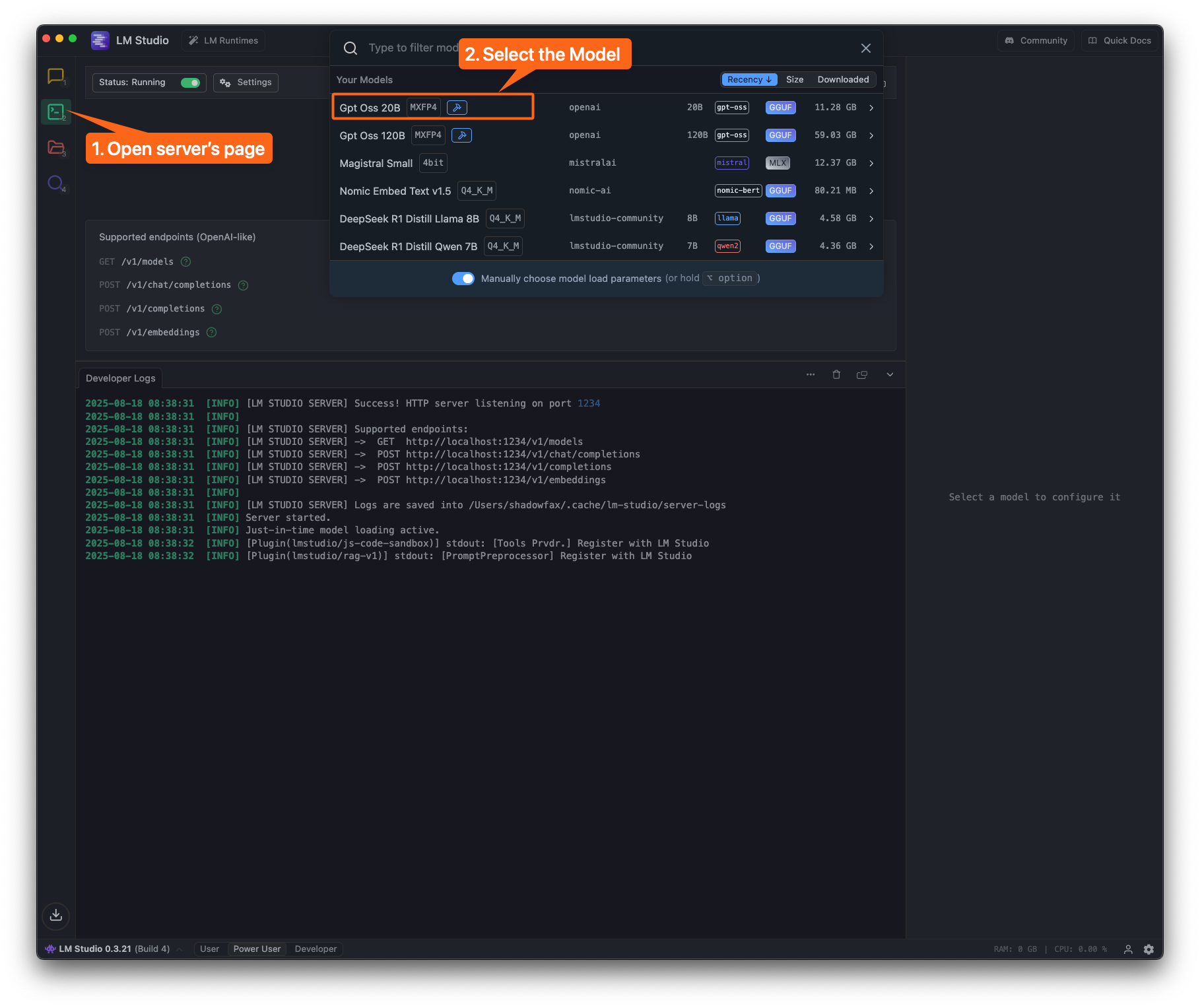
2
Load the Model
In this example, we’re loading the 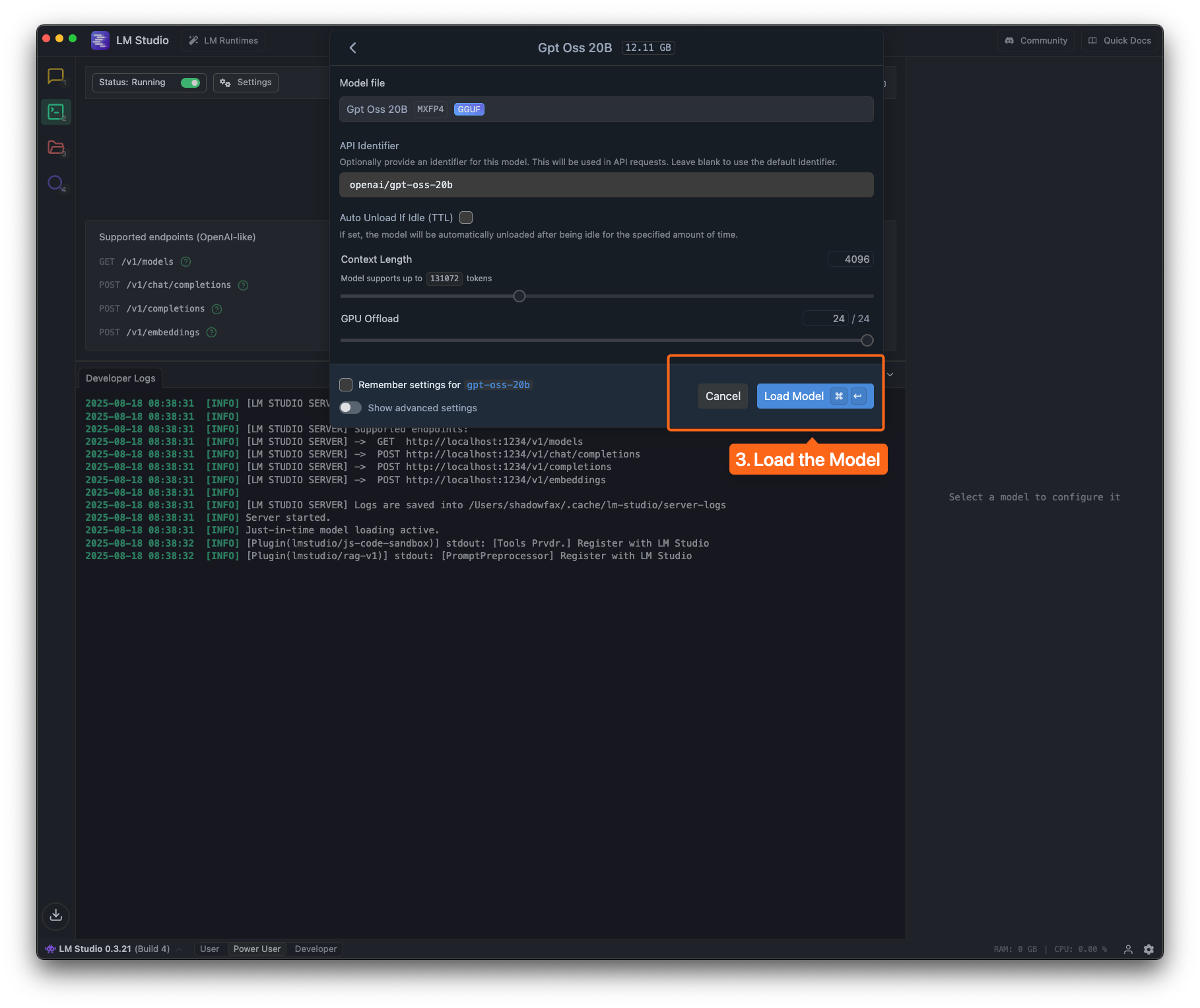
openai/gpt-oss-20b model.3
Configure in Oryx
- Navigate to
chrome://settings/Oryxor go to Settings → Oryx AI - Click Add Provider
- Select OpenAI Compatible in the Provider Type dropdown
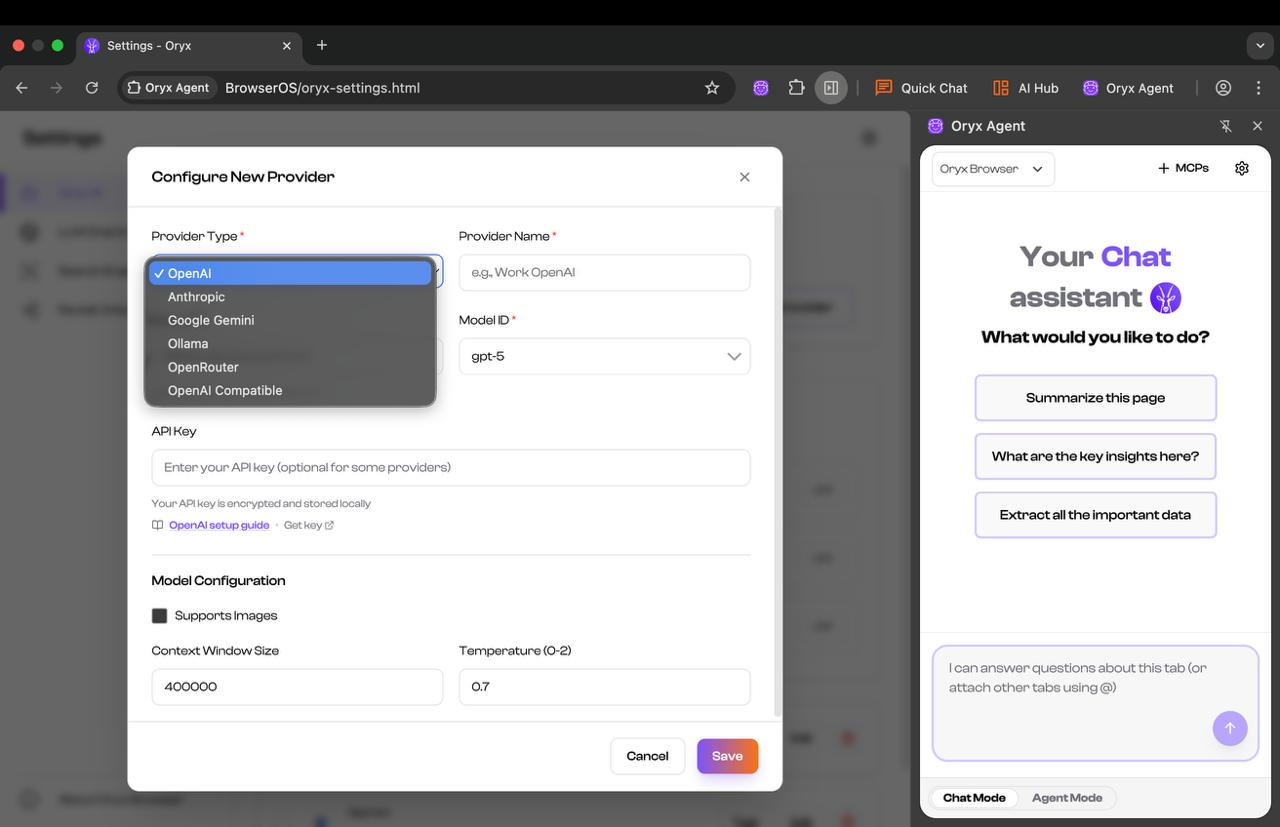
4
Configure the Model
- Replace the Base URL with LM Studio URL (default:
http://localhost:1234/v1/) - Set the Model ID to the one you loaded in LM Studio
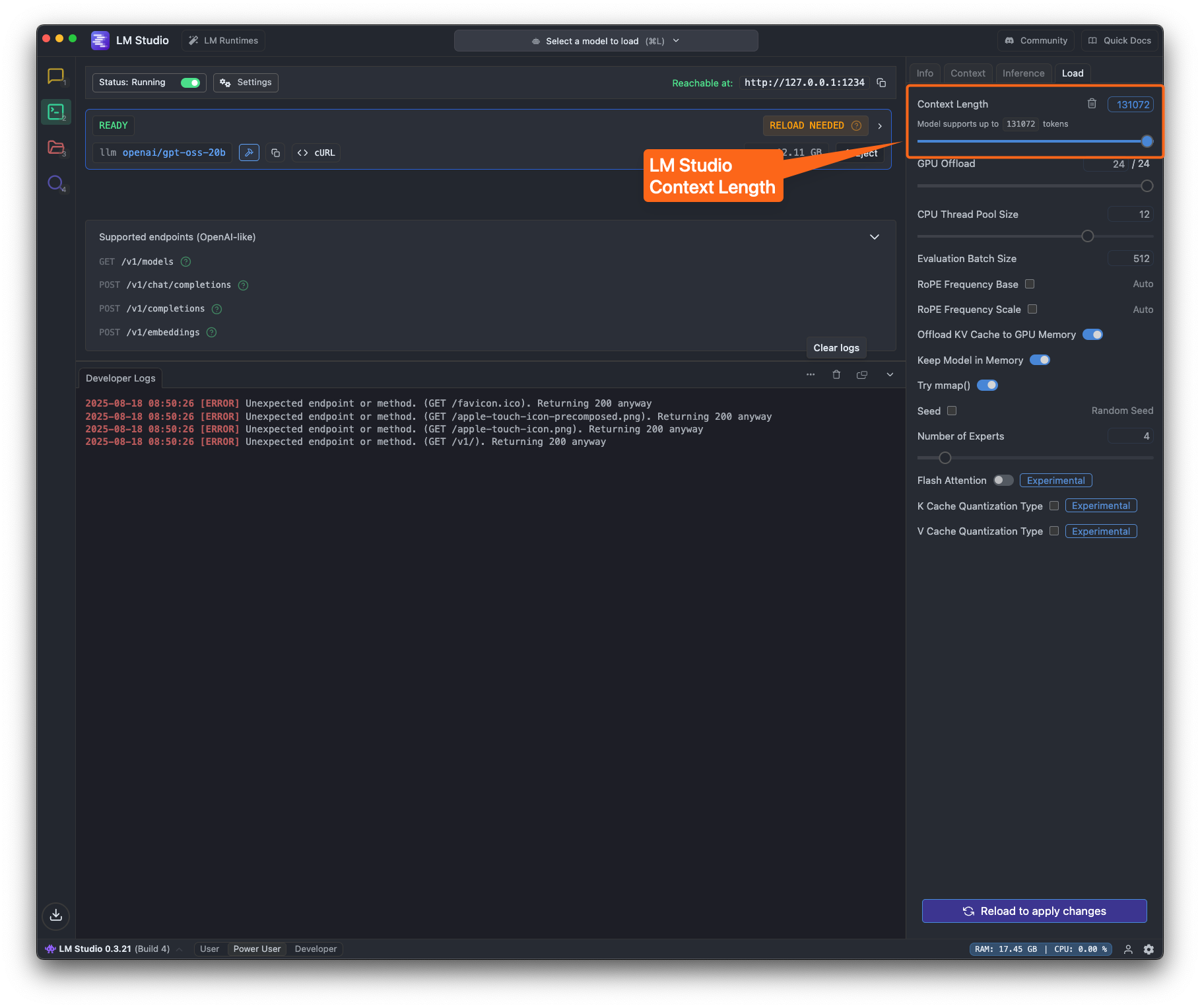
- Important: Set the Context Window Size to match your LM Studio configuration
5
Use the Model
Select the model in Oryx agent and start using it! 🎉
Configuration Details
Default LM Studio Settings
Default LM Studio Settings
- Base URL:
http://localhost:1234/v1/- Provider Type: OpenAI Compatible - Context Window: Depends on your model and hardware (typically 2048-32768)
Supported Models
Supported Models
LM Studio supports various models including: - OpenAI GPT-OSS series - LLaMA
and derivatives - Mistral models - And many more from Hugging Face